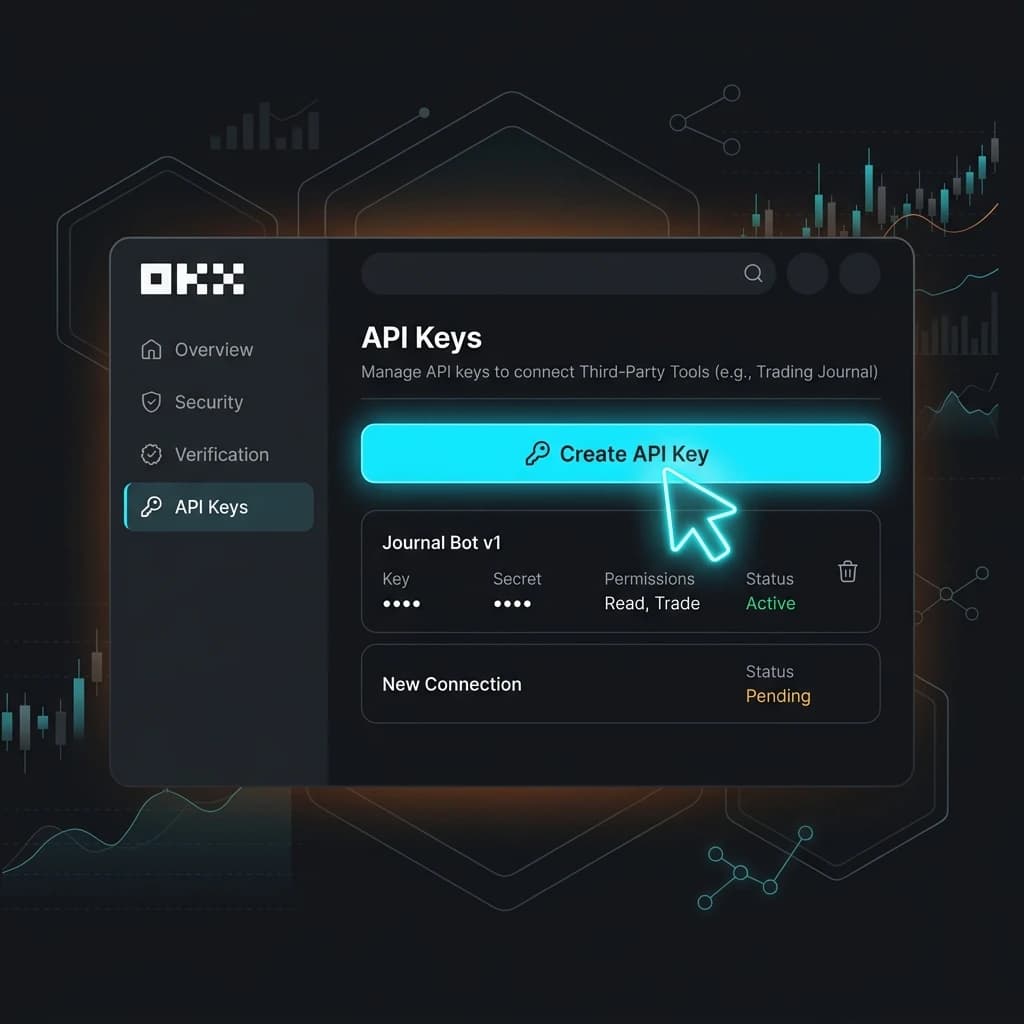
How to Connect OKX to Edgelog for Free Trading Journal (Spot & Futures)
If you're trading spot or futures on OKX and still copy-pasting trades into a spreadsheet, this guide is for you. In the next few minutes, you'll have your OKX account fully connected to Edgelog — a free crypto trading journal that auto-syncs your trades via a read-only API key. No manual entry, no Excel gymnastics, and no credit card required to start a free trading journal.
Here's the complete setup, step by step.
What You'll Need Before You Start
You need an active OKX account (mobile app or browser, both work) and a free Edgelog account. The whole process takes under five minutes. Edgelog only ever needs Read permission — it can never place trades or withdraw funds on your behalf.
Step 1: Open the API Section in Your OKX Profile
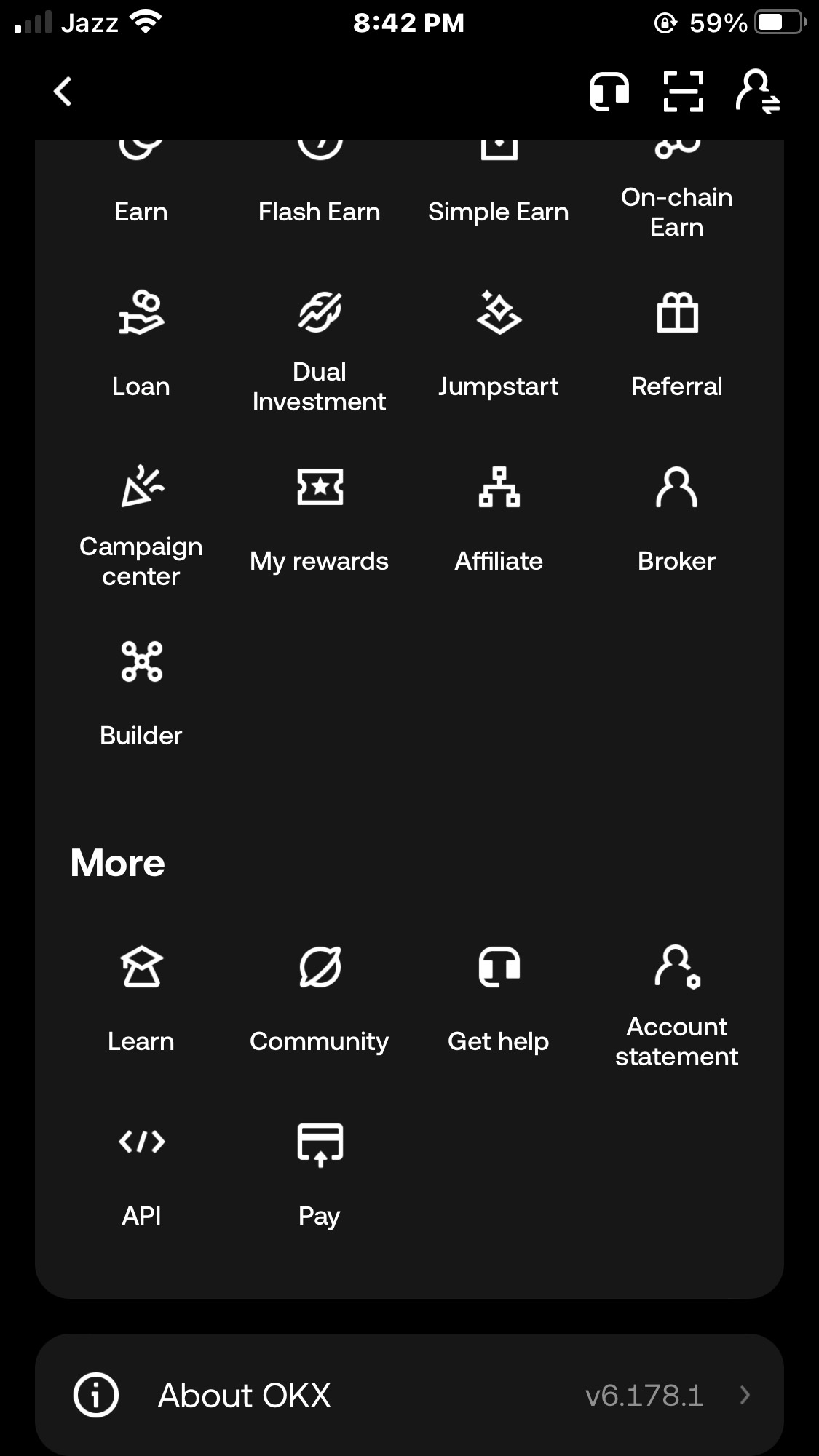
Open the OKX mobile app and navigate to your profile. Scroll all the way down through the menu until you reach the More section. You'll see options like Learn, Community, Get help, Account statement, and at the bottom — API. Tap API.
Step 2: Create a New Read-Only API Key
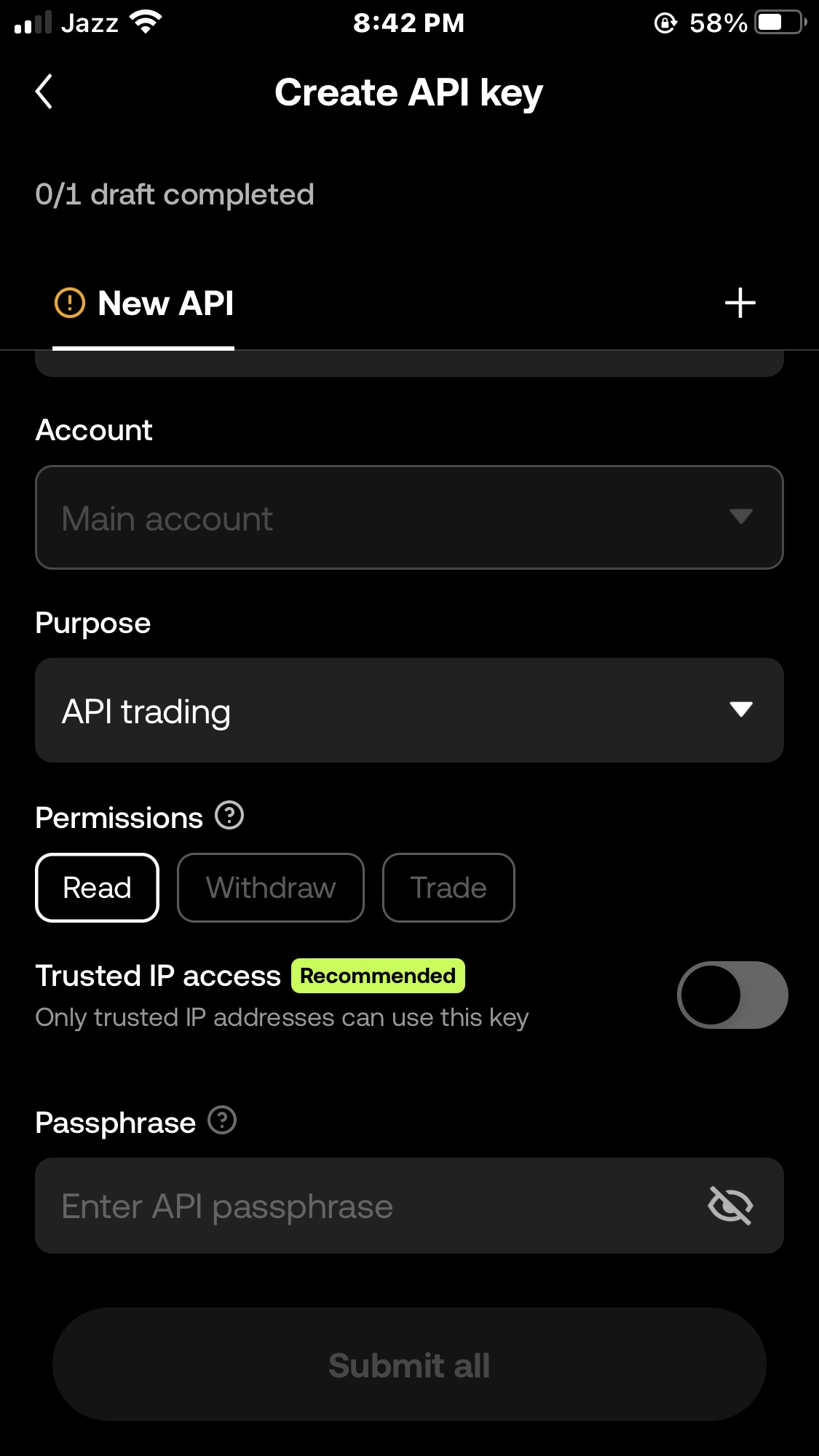
Tap the + button to start creating a new API key. You'll land on the Create API key screen. Configure it exactly like this:
- Account — leave it set to Main account (default).
- Purpose — the dropdown shows API trading; leave this as-is, it doesn't affect read-only permissions.
- Permissions — make sure only Read is selected (it should be highlighted by default). Do NOT enable Withdraw or Trade. Read-only is all Edgelog needs, and it's the safest setup.
- Trusted IP access — you can leave this toggle off for now unless you want to lock the key to specific IPs.
- Passphrase — this is mandatory on OKX. Enter a passphrase you'll remember — it works like a password for this API key. You'll need to paste it into Edgelog in a later step, so keep it handy.
Once everything's filled in, tap Submit all.
After submitting, OKX will show you your API Key and API Secret. Copy both of these somewhere safe — OKX only shows the secret once.
Step 3: Open Edgelog and Select OKX API Sync
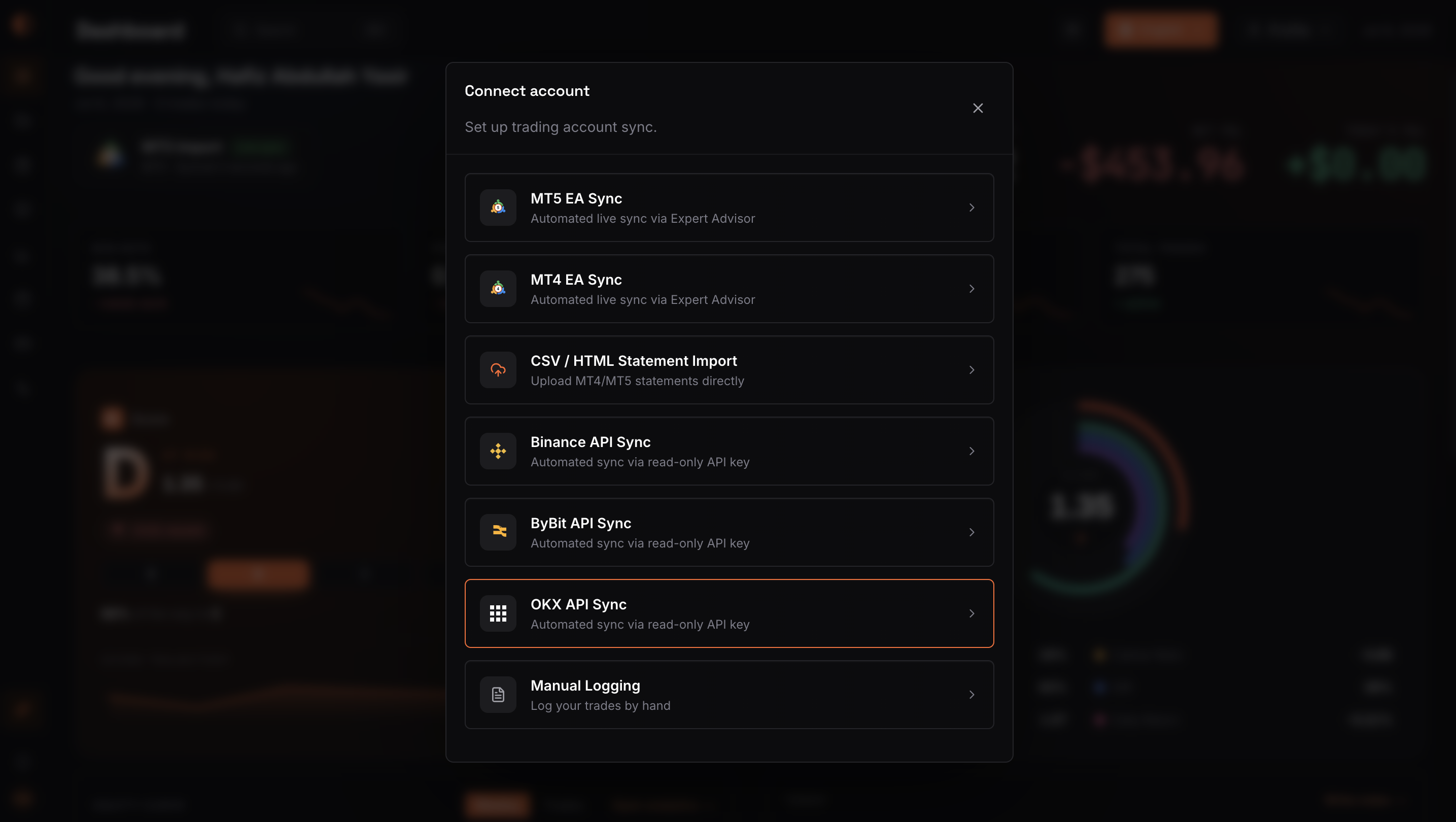
Log in to your Edgelog dashboard and click Connect account. A modal will appear listing all the supported connection methods: MT5 EA Sync, MT4 EA Sync, CSV/HTML Import, Binance API Sync, ByBit API Sync, OKX API Sync, and Manual Logging.
Click OKX API Sync — described as "Automated sync via read-only API key." It's highlighted with an orange border in the list.
Step 4: Paste Your OKX API Key, Secret, and Passphrase into Edgelog
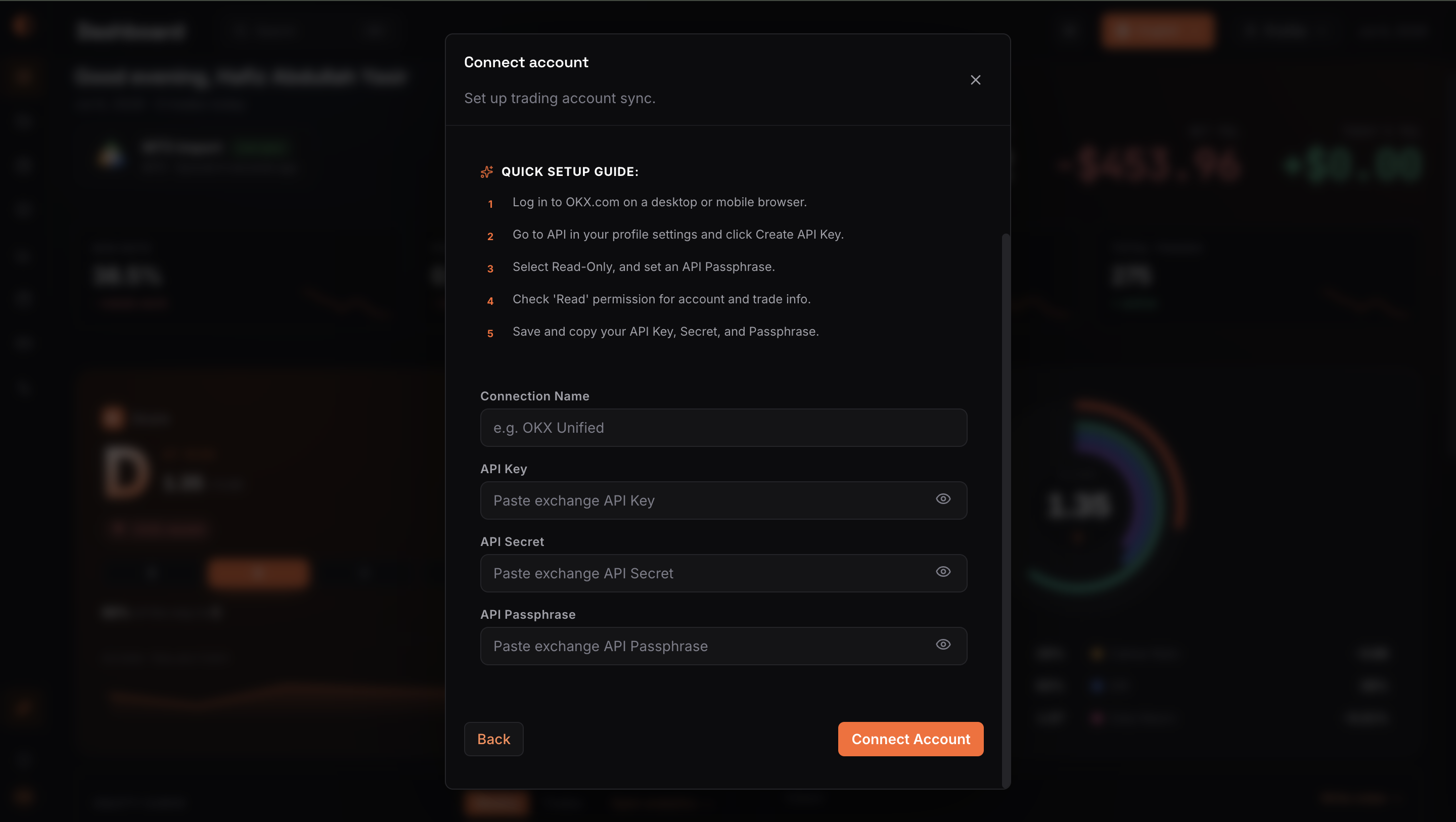
The next screen shows the Edgelog OKX connection form. It also displays a quick setup checklist as a reminder of what you just did on OKX — useful if you need to go back and double-check anything.
Fill in the three fields:
- Connection Name — give this account a label you'll recognise, like
OKX UnifiedorOKX Futures. - API Key — paste the API Key you copied from OKX.
- API Secret — paste the API Secret.
- API Passphrase — enter the passphrase you set in Step 2. This is the custom password you chose when creating the key — not your OKX login password.
Double-check all three fields, then click Connect Account.
Step 5: Confirm Your OKX Account Is Connected
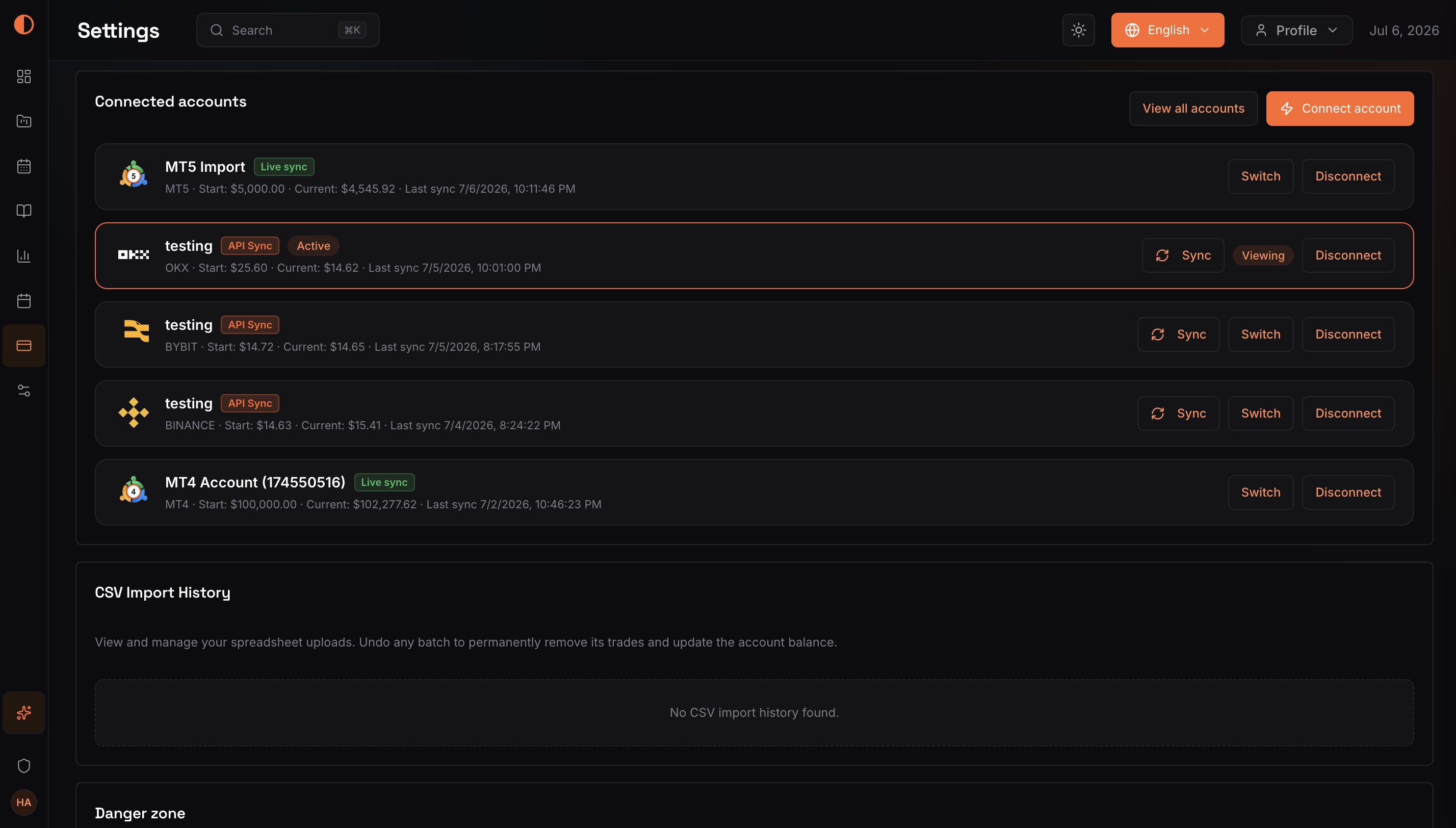
Edgelog will redirect you to the Settings → Connected accounts page. You'll see your newly added OKX account listed with an API Sync badge and status showing Active. The sync timestamp will appear alongside your starting and current balance — confirming your spot and futures trade history is already pulling in.
You're done. Your OKX trades are now logging automatically.
Troubleshooting: Common Issues
"Invalid API key or passphrase" error — Go back to OKX and regenerate a new API key. The secret is only shown once; if you didn't copy it correctly, you'll need a fresh key. Make sure the passphrase matches exactly what you entered when you created the key — it's case-sensitive.
Trades not syncing after connecting — Hit the Sync button manually on the Settings page. If that doesn't work, check that your API key has Read permission enabled and hasn't been deleted inside OKX.
Only spot trades showing, no futures — Make sure your OKX API key is linked to your Main account (Unified account). Sub-account keys won't pull in all positions. If you're on a separate futures account, you may need to create a second API key scoped to that account.
API key was deleted or expired — OKX API keys don't expire by default, but you may have deleted it accidentally. Just create a new one following Steps 1–2 and update the connection in Edgelog via Settings → Disconnect → Connect account.
Passphrase field left blank — Unlike Binance or Bybit, OKX requires a passphrase every time. It won't connect without it.
You're Ready to Start Reviewing Your OKX Trades
Once connected, Edgelog will automatically sync your OKX spot and futures trades, calculate your win rate, average R, and show you where your edge actually lives — or where you're leaking money. It's the kind of clarity a spreadsheet can't give you.
Check out the blog for tips on how to actually use your journal data to improve, or head to the FAQ if you run into anything not covered here. There's also a pricing page if you're curious about what's free vs. premium (spoiler: the core journaling features won't cost you a thing).
Ready to see your trading clearly? Start journaling free — no credit card, no catch.