How to Connect Bybit to Edgelog for Free Trading Journal Sync (Futures & Spot)
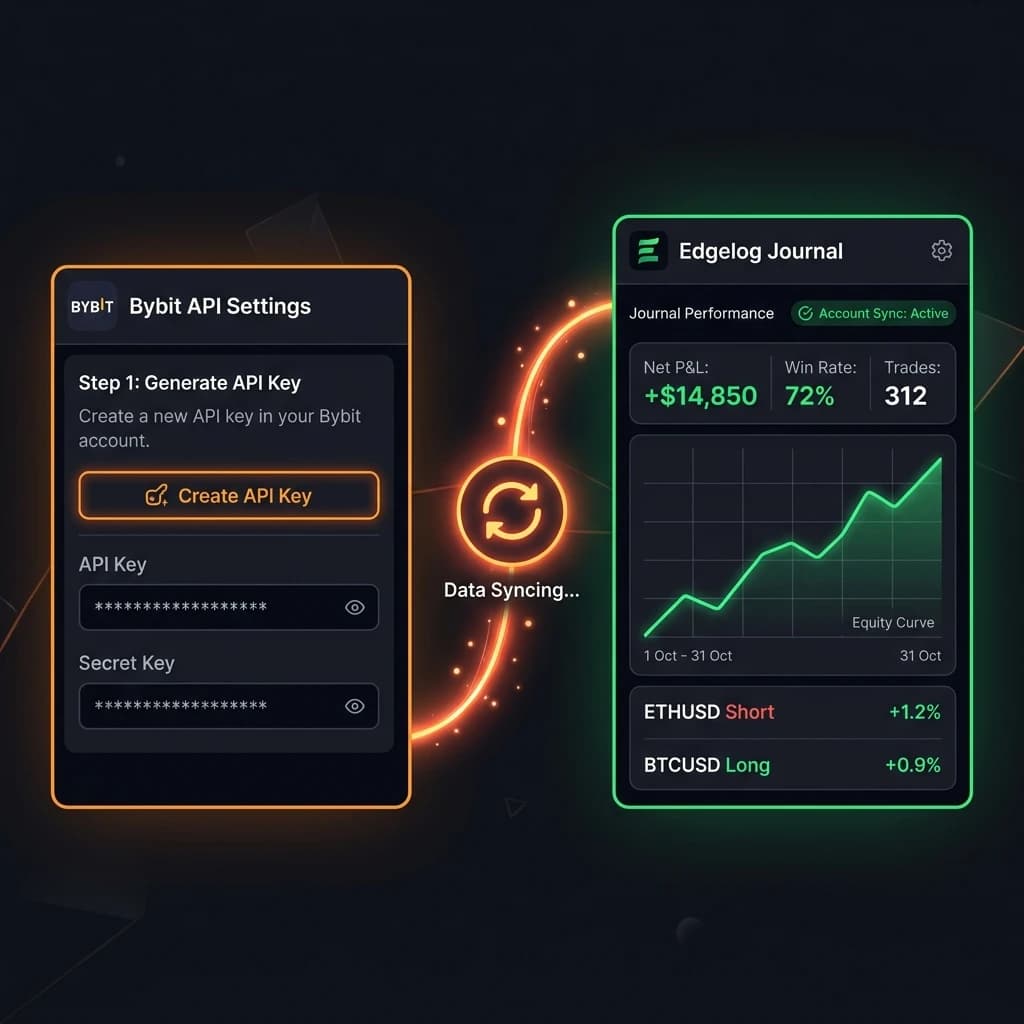
If you're trading futures or spot on Bybit and still logging trades manually, you're leaving a lot of insight on the table. This guide walks you through how to connect Bybit to Edgelog — a free trading journal that auto-syncs your trades via a read-only API key. No spreadsheets, no copy-pasting, no credit card required.
By the end of this, your Bybit account will be live inside Edgelog and pulling in your trade history automatically.
Step 1: Go to the Bybit API Management Page
Log in to your Bybit account and navigate to the API section. You can find it in the left sidebar under your account settings, or go directly via the API menu option.
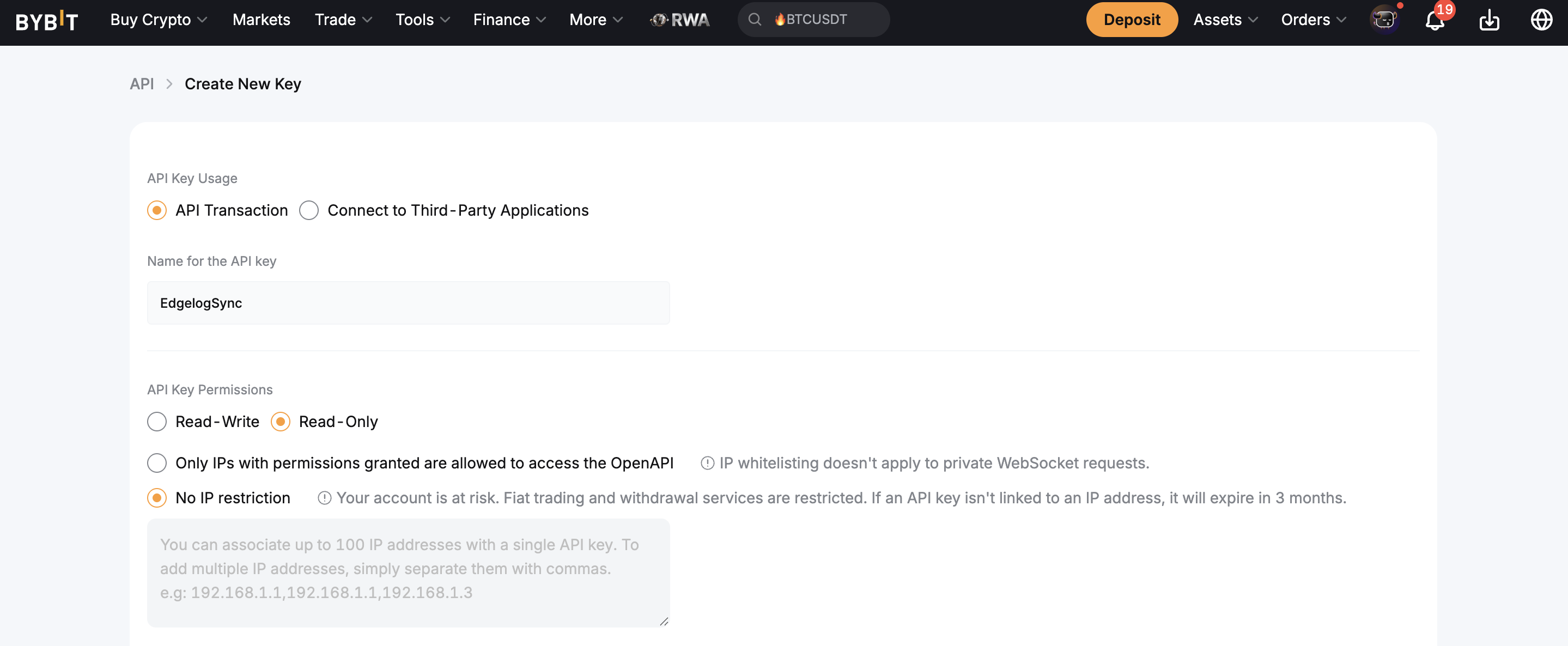
Once there, click Create New Key in the top right corner.
On the creation form, you'll see two usage options at the top. Select API Transaction (not "Connect to Third-Party Applications"). Then, in the Name for the API key field, type something recognisable like EdgelogSync so you know what it's for later.
Under API Key Permissions, select Read-Only. This is important — Edgelog only ever needs read access. It cannot place trades, move funds, or touch your account in any way.
For IP restriction, you can leave it on No IP restriction for simplicity, but be aware that Bybit will expire the key in 3 months if no IP is bound. If you want a permanent key, whitelist Edgelog's server IP instead.
Step 2: Set Your Trade Permissions (Unified Trading)
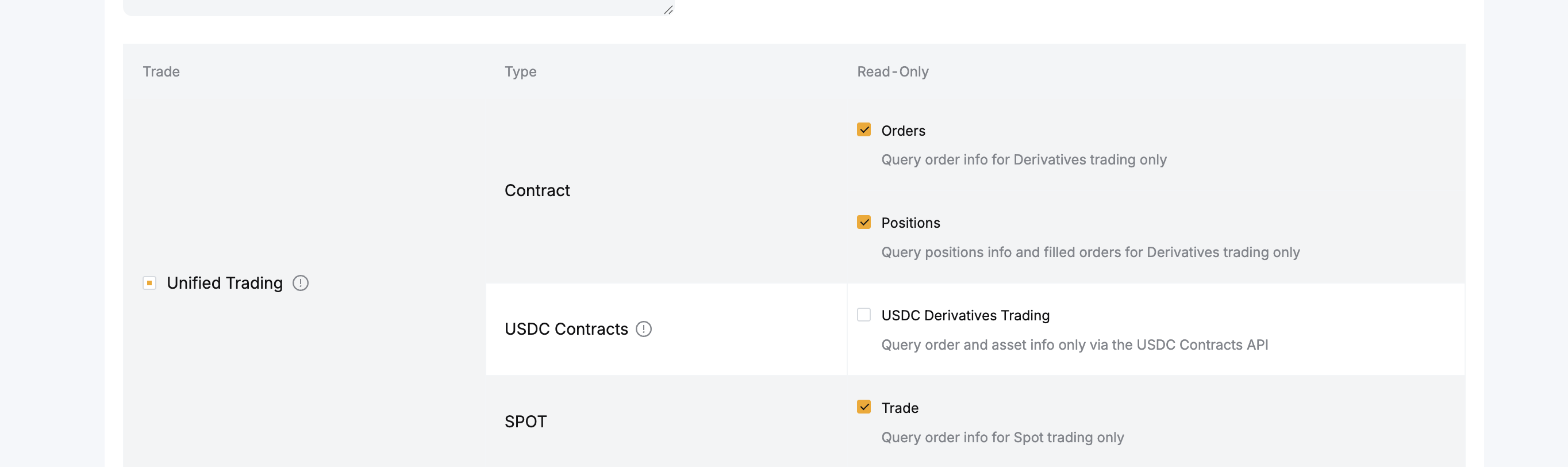
Scroll down to the permissions section. You'll see a breakdown by category — Trade, Assets, and Others.
Under Unified Trading, make sure the following are checked:
Under Contract (for Derivatives / Futures): enable Orders (query order info for Derivatives trading) and Positions (query positions info and filled orders for Derivatives trading).
Under SPOT: enable Trade (query order info for Spot trading only).
You can leave USDC Contracts unchecked unless you specifically trade USDC-margined derivatives.
Step 3: Set Your Asset Permissions
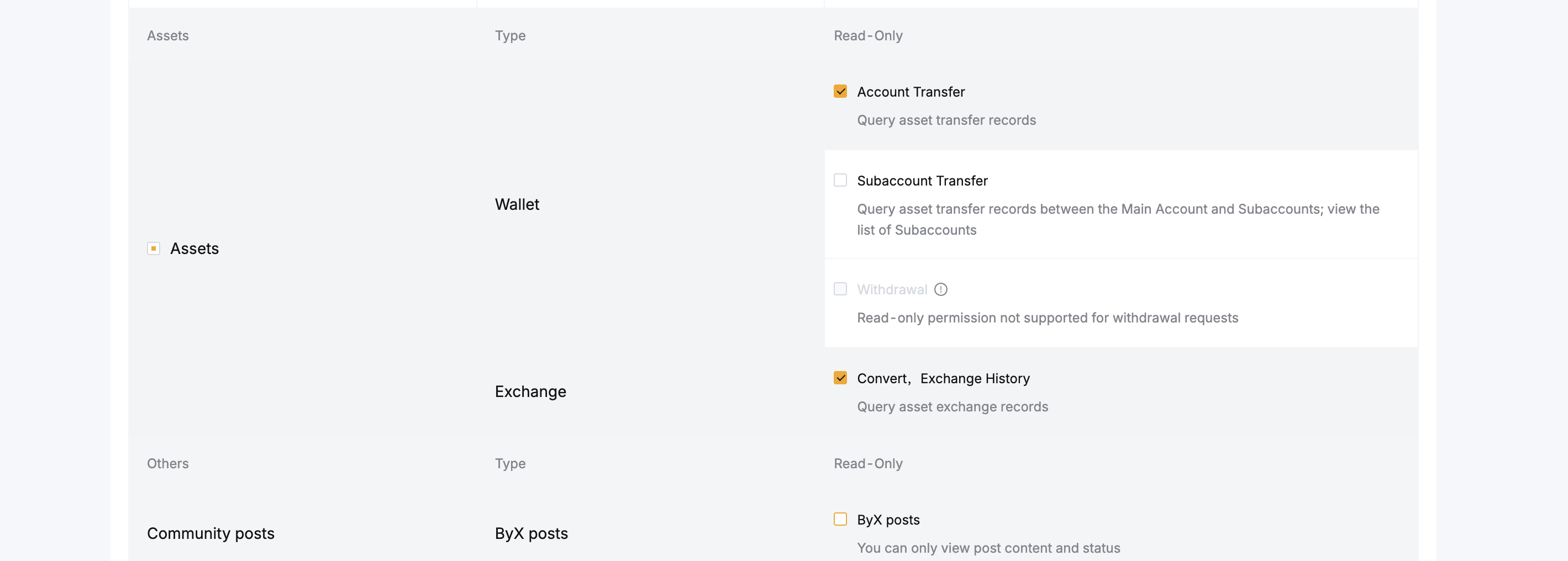
Still on the same form, scroll down to the Assets section.
Under Wallet: check Account Transfer (query asset transfer records). You can leave Subaccount Transfer and Withdrawal unchecked — Withdrawal is read-only restricted anyway and isn't needed.
Under Exchange: check Convert, Exchange History (query asset exchange records).
Leave Community posts and any other sections unchecked — they're not relevant for trade journaling.
Once everything looks right, submit the form and complete any 2FA verification Bybit requires.
Step 4: Copy Your API Key and Secret
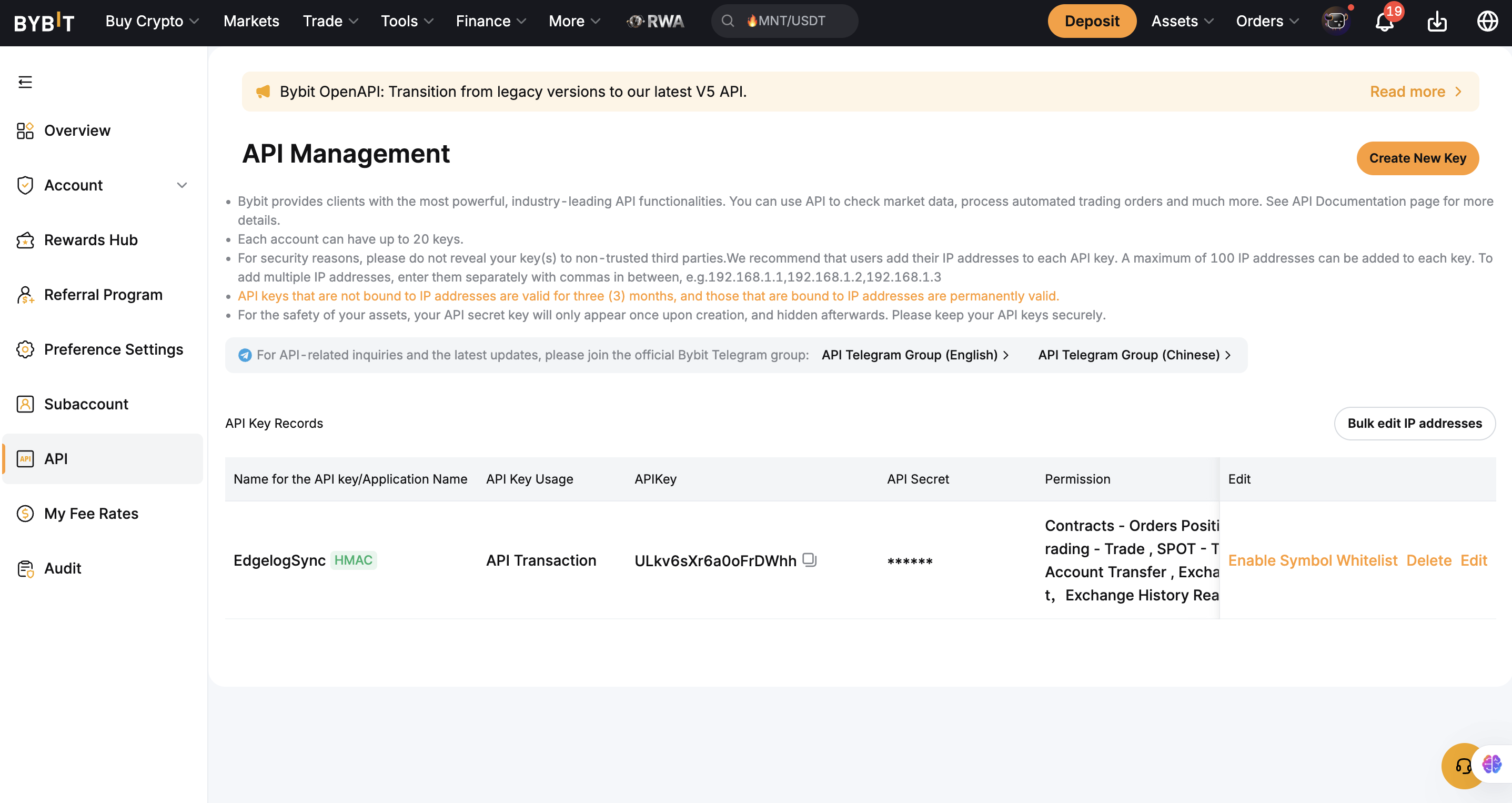
After confirming, Bybit will take you back to the API Management page. You'll see your new EdgelogSync key listed in the API Key Records table, showing the assigned permissions summary.
Your API Key is visible directly in the table. Your API Secret is only shown once immediately after creation — if you're still on the confirmation screen, copy it now. If you've navigated away, you'll need to delete and recreate the key.
Keep both values somewhere safe. You'll paste them into Edgelog in the next step.
Step 5: Connect Your Bybit Account in Edgelog
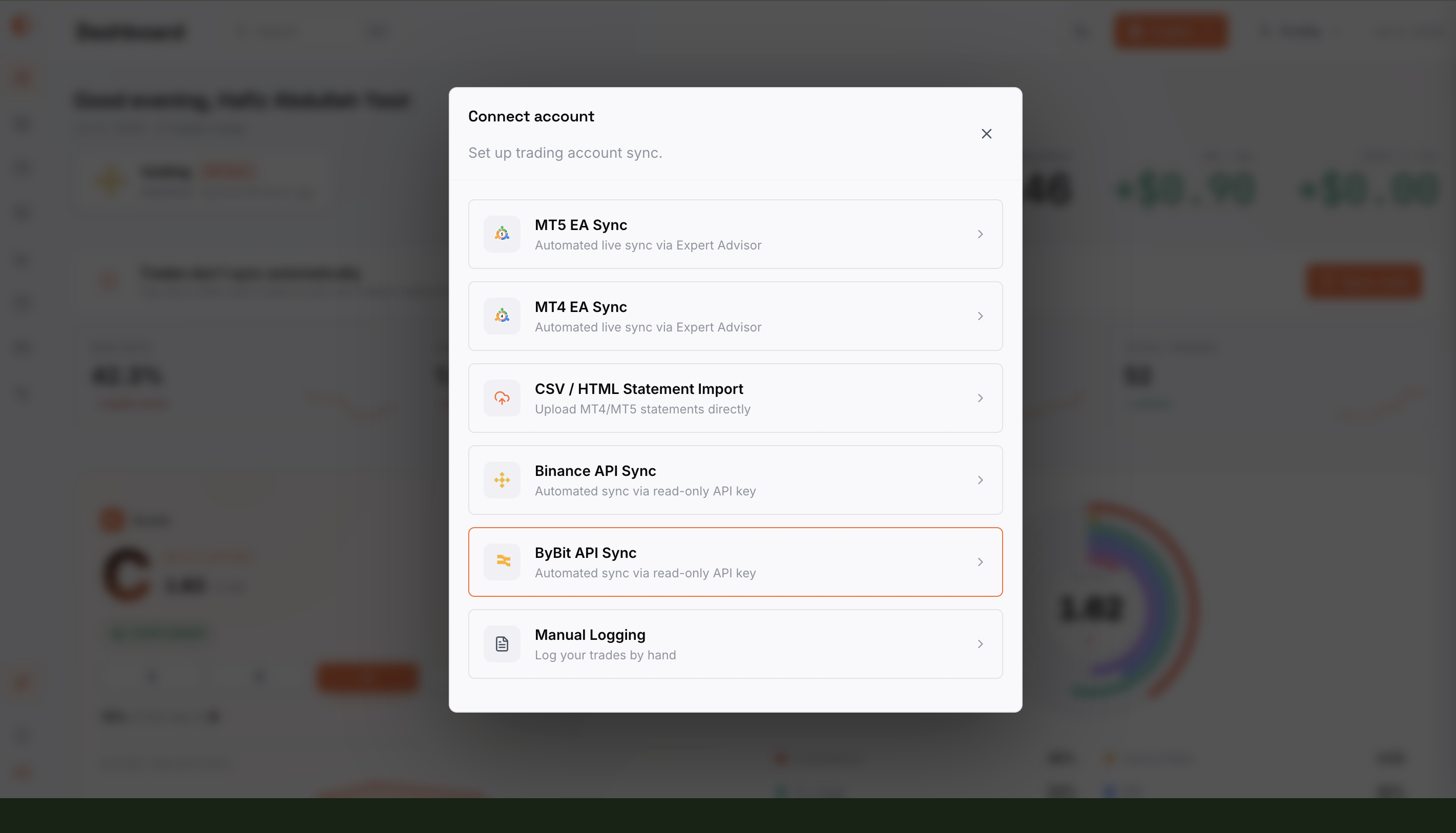
Head over to your Edgelog dashboard and open the Connect account modal. You'll see a list of sync options, including MT5, MT4, Binance, and others.
Select ByBit API Sync — described as "Automated sync via read-only API key."
You'll be prompted to paste in your API Key and API Secret from the previous step. Fill those in and confirm the connection.
Step 6: Confirm Your Bybit Account Is Live
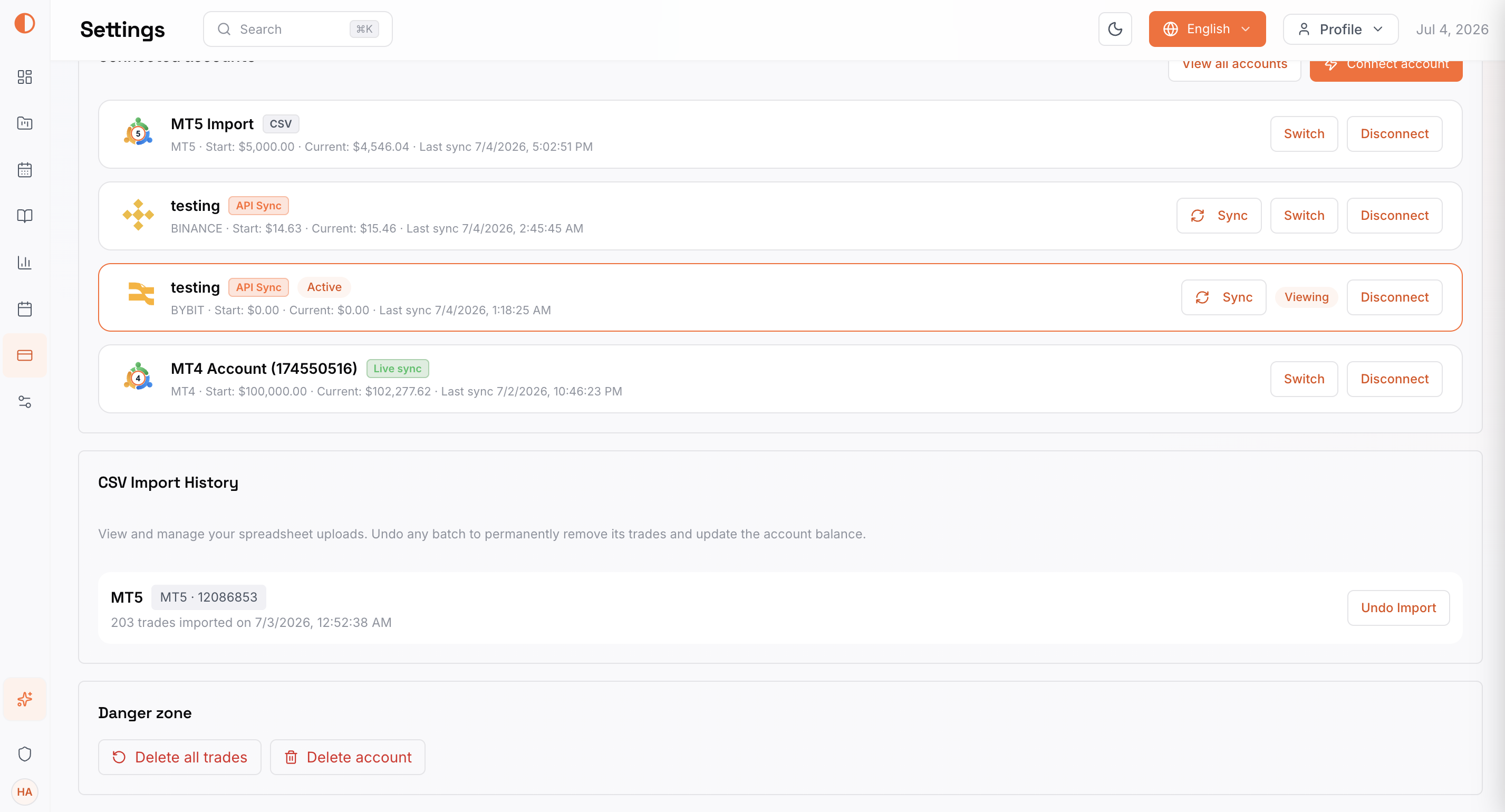
Once connected, go to your Settings page inside Edgelog. Under Connected Accounts, you'll see your Bybit account listed with an API Sync badge and an Active status.
The entry will show your starting balance, current balance, and the timestamp of the last sync. From here, you can manually trigger a Sync, switch accounts, or disconnect if needed.
That's it — your Bybit futures and spot trades are now logging automatically.
Common Issues & Troubleshooting
API key shows as invalid: Double-check that you copied the full key and secret without any extra spaces. The secret is only shown once on Bybit — if you missed it, delete the key and create a fresh one.
No trades appearing after sync: Make sure you enabled the correct permissions. If you only trade futures, you need Orders and Positions checked under Contract. If you trade spot, Trade under SPOT must be enabled.
Key expired after 3 months: This happens when no IP address is bound. Either recreate the key and bind an IP, or recreate with no IP restriction and remember to renew it before expiry.
Sync shows $0.00 balance: This can happen if the API key was created on a subaccount rather than your main account. Confirm you're creating the key from the correct account in Bybit.
Check the FAQ for more connection-related questions, or head to the blog for other platform setup guides.
Start Journaling Your Bybit Trades for Free
Once your account is connected, Edgelog starts building your trading stats automatically — win rate, average R, drawdown, best and worst sessions, all of it. No more guessing whether your strategy is actually working.
Start a free trading journal and connect your Bybit account in under five minutes. No credit card, no trial period — it's free.