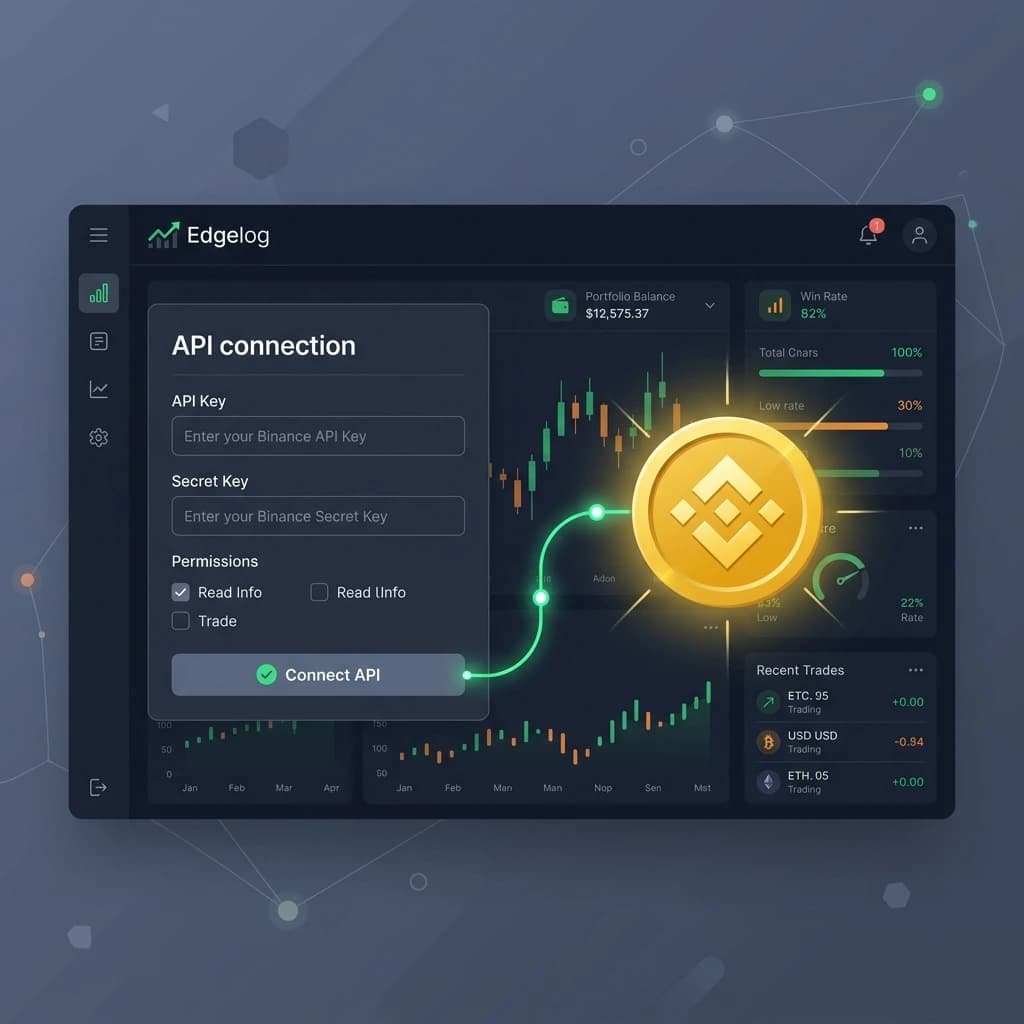
How to Connect Binance to Edgelog for Free Trading Journaling (Spot & Futures)
If you trade Spot or Futures on Binance and you're still tracking your trades in a spreadsheet — or worse, not tracking them at all — this guide is for you. In the next five minutes, you'll have your Binance account connected to Edgelog's free crypto trading journal via a read-only API key, and every closed trade will start syncing automatically—no manual entry, no exports, no hassle.
Here's exactly how to do it.
Step 1 — Find API Management in the Binance Mobile App
Open the Binance app on your phone. Tap the search bar at the top and type API Management. Under the Functions tab in the search results, you'll see API Management appear as an option. Tap it.
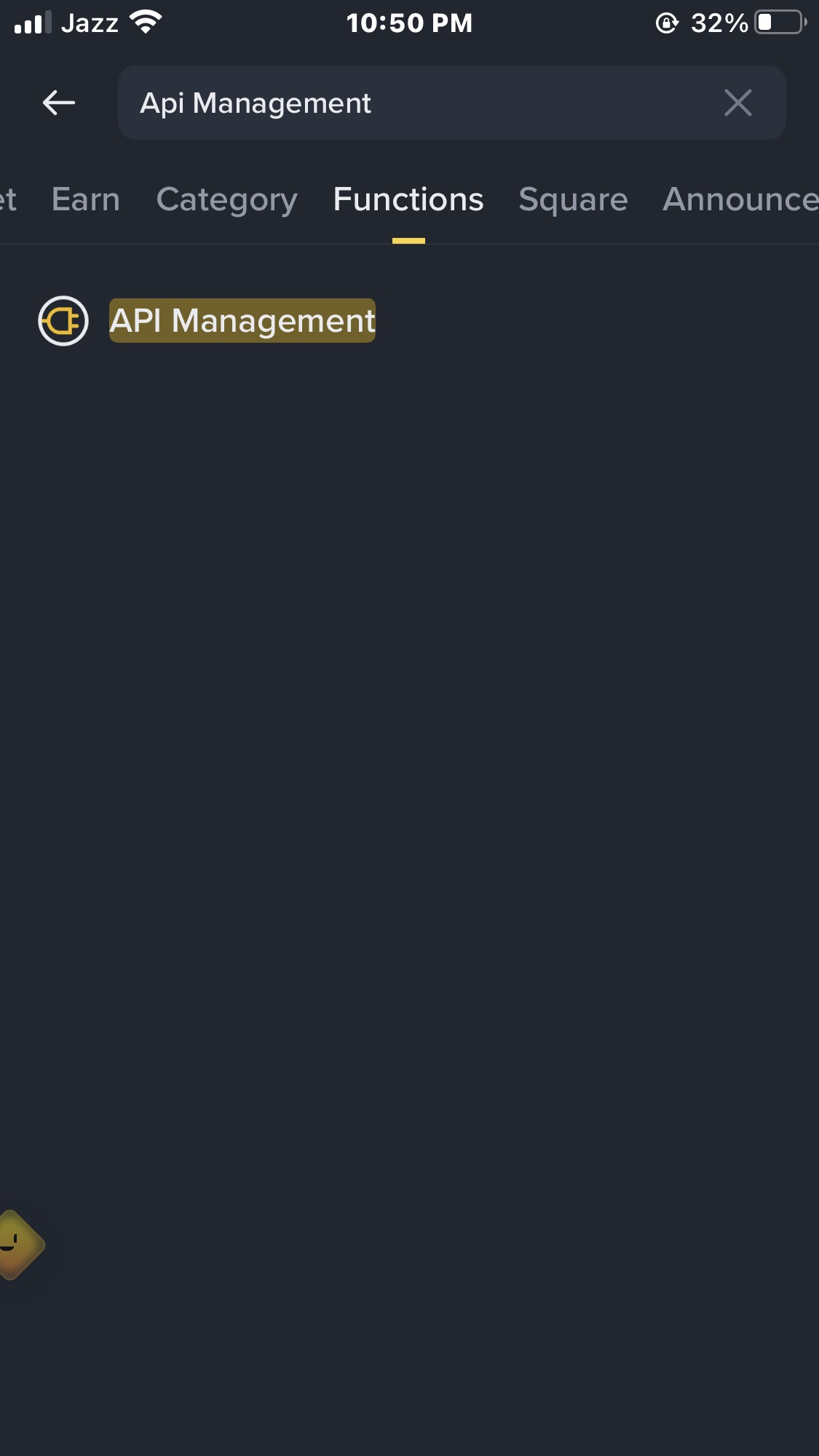
Step 2 — Create a Read-Only API Key and Copy Your Credentials
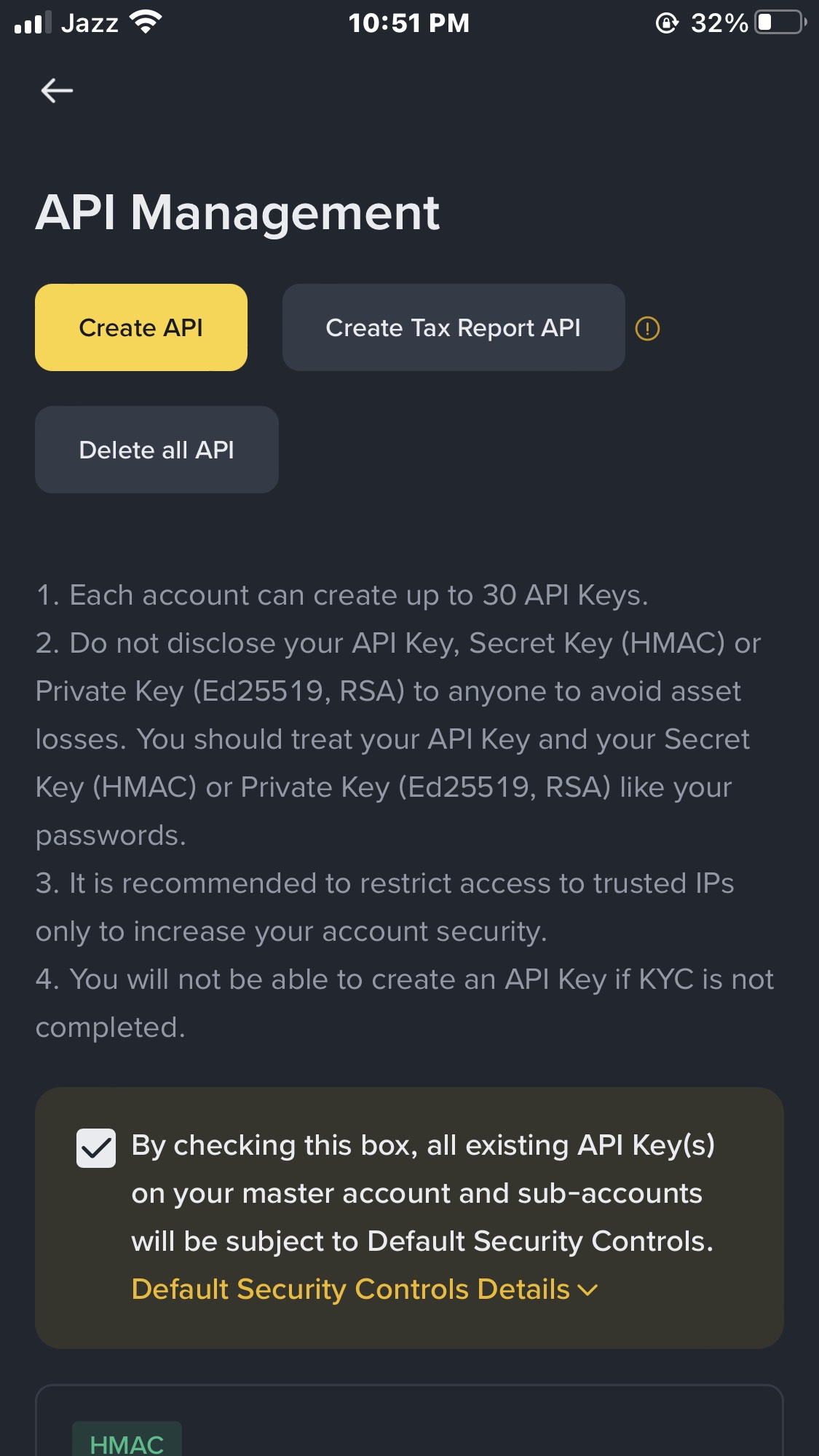
Inside API Management, create a new API key if you don't already have one. When you get to the API restrictions screen, the only permission you need to leave enabled is Enable Reading — this is checked by default, and it's all Edgelog needs to pull your trade history.
Do not enable Enable Withdrawals, Permits Universal Transfer, or any other permission. Read-only is the right call here — it keeps your funds safe while still letting Edgelog see your closed trades.
Once your key is created, tap Copy next to your API Key and save it somewhere handy (Notes app works fine). Your Secret Key is shown only once, so copy that too before you leave this screen.
Step 3 — Open Edgelog and Select Binance API Sync
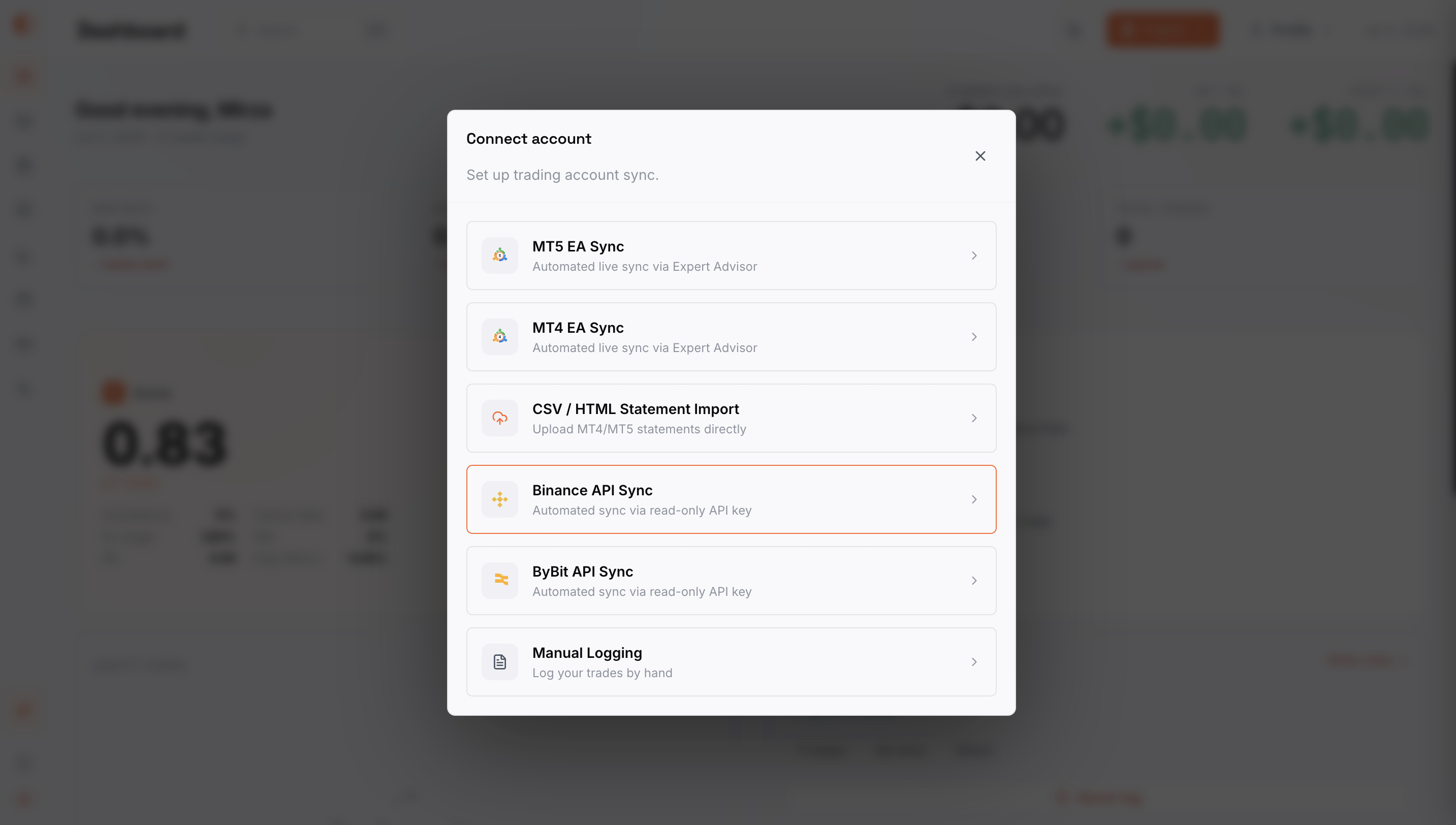
Head over to your Edgelog dashboard (desktop browser recommended for this part). Click Connect account — you'll see a modal with all available connection methods: MT5 EA Sync, MT4 EA Sync, CSV/HTML Import, Binance API Sync, ByBit API Sync, and Manual Logging.
Click Binance API Sync — it's described as "Automated sync via read-only API key," which is exactly what you've just set up.
Step 4 — Paste Your API Key and Secret into Edgelog
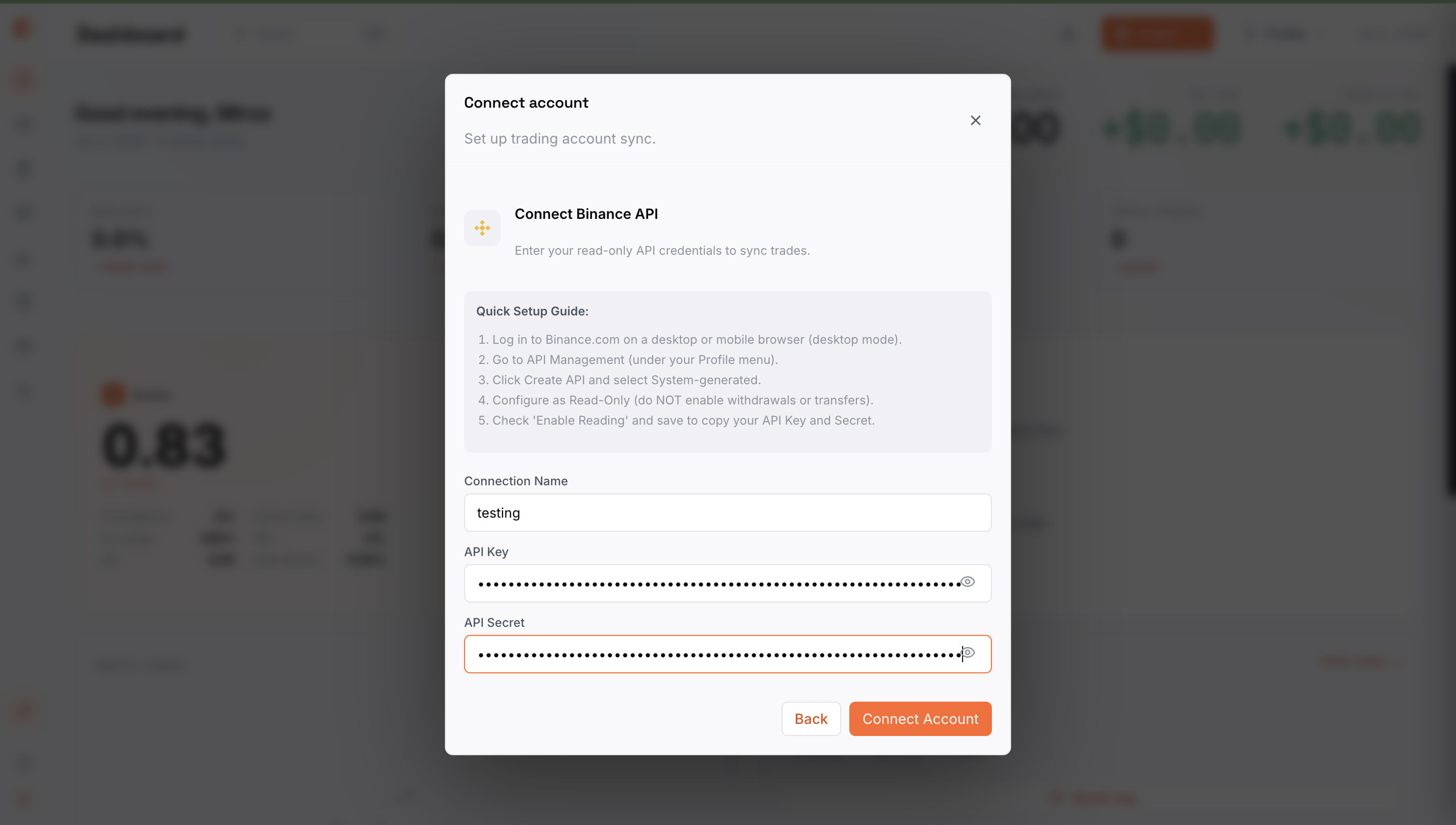
On the next screen, you'll see the Connect Binance API form. Fill in three fields:
- Connection Name — give it a label you'll recognize, like "Binance Main" or "Futures Account."
- API Key — paste the API Key you copied from Binance.
- API Secret — paste the Secret Key you copied from Binance.
Once both fields are filled in, click Connect Account.
That's it. Edgelog only uses read-only access, so your funds are never at risk through this connection.
Step 5 — Confirm Your Binance Account Is Active and Syncing
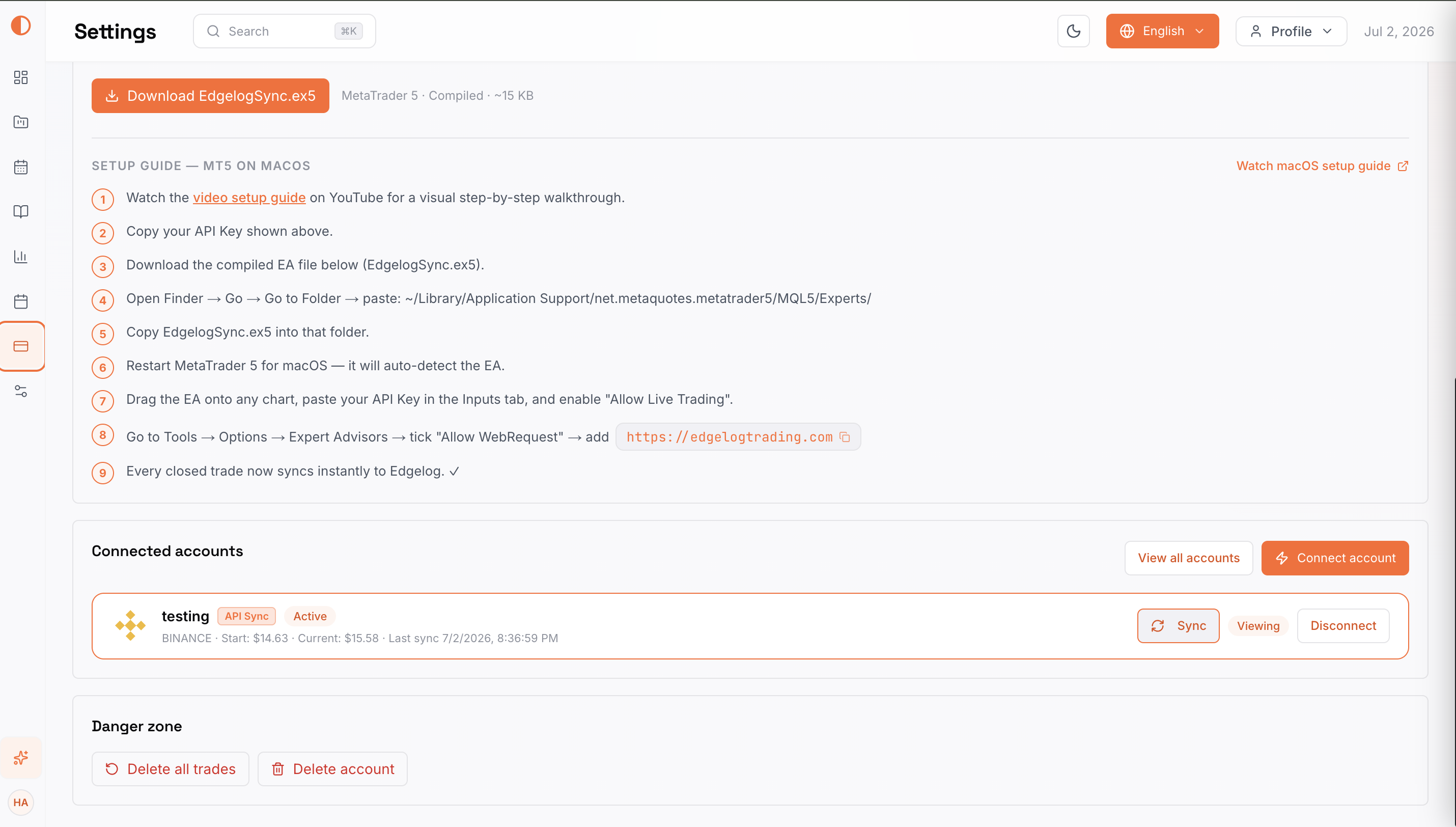
After connecting, you'll land on the Settings page where your connected accounts are listed. You should see your Binance account appear with an API Sync badge and a status of Active. The entry also shows your starting balance, current balance, and the timestamp of the last sync.
From here, you can hit Sync at any time to manually pull in the latest trades, or just let Edgelog handle it automatically going forward. Both your Spot and Futures trades will appear in the journal as they close.
Common Issues & Troubleshooting
"Invalid API Key" error on connection — Double-check that you copied the full key without any trailing spaces. Keys are long, and it's easy to miss a character. Copy directly from the Binance app's Copy button rather than selecting the text manually.
Secret Key not available — Binance only shows your Secret Key once, right after creation. If you didn't save it, you'll need to delete the API key and create a new one. This is standard practice across all exchanges.
Trades not appearing after connecting — Give it a minute after the initial sync. If trades still don't show, hit the Sync button manually on the Settings page. Edgelog pulls recent closed trades on sync, so any very old historical trades may have a limited lookback window depending on what Binance's API returns.
Wrong permissions selected — If you accidentally enabled Withdrawals or Transfers, go back into Binance API Management, edit the key, and uncheck those permissions. For a trading journal, Enable Reading is the only permission you need.
Futures trades not showing — Binance Spot and Futures run on separate sub-accounts. Make sure the API key you created has access to both — the Enable Futures permission doesn't need to be ticked for read access; Enable Reading covers it. If you're still not seeing Futures data, create a fresh API key and reconnect.
You're All Set — Start Reviewing Your Trades
Once that Active badge appears on your Settings page, your Binance journal is live. Every closed Spot and Futures trade will sync into Edgelog automatically, where you can tag trades, review your win rate, track your best and worst setups, and actually build an edge over time.
If you're not on Edgelog yet, it's completely free — no credit card, no trial period, just your trades. Start a free trading journal today and connect to Binance in the next five minutes using the steps above. You can also check out the blog for more setup guides, or visit the FAQ if you run into anything not covered here.
Log your trades. Master your edge.