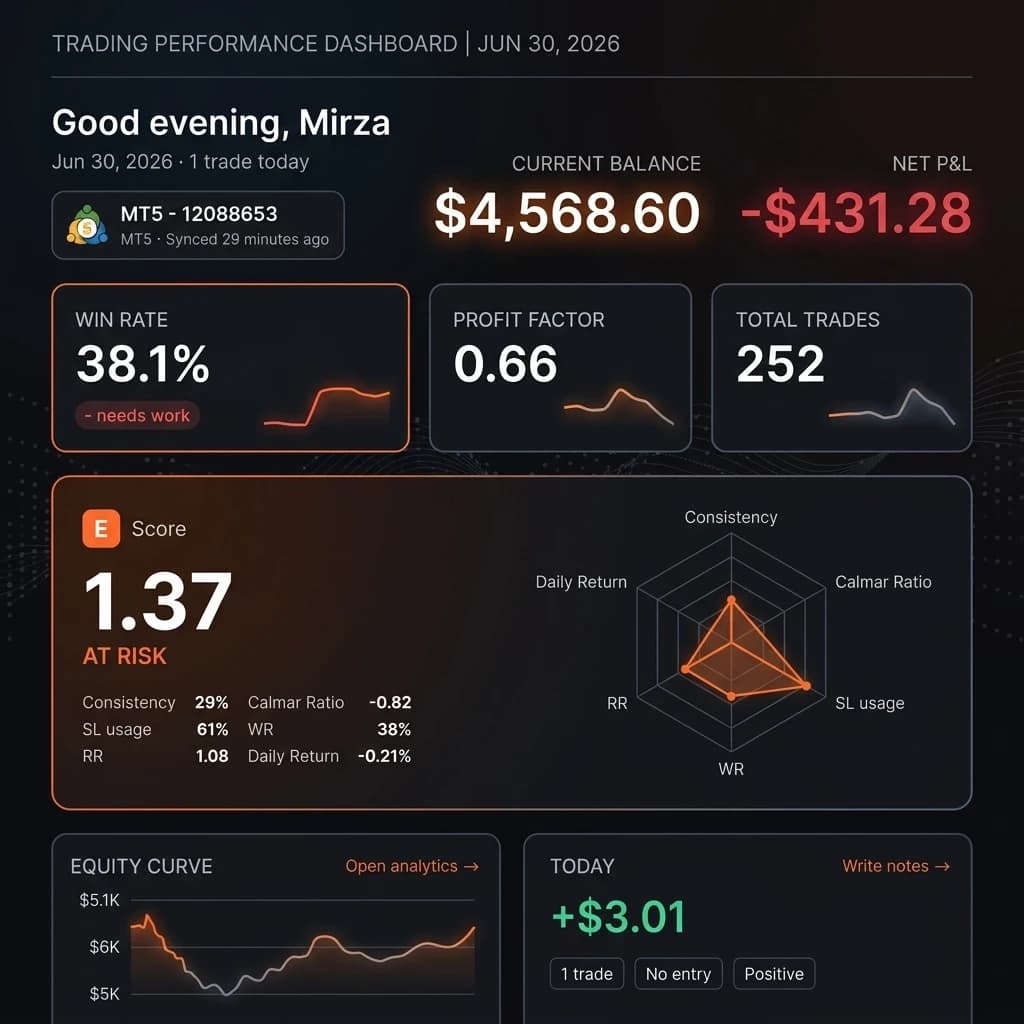
How to Connect MetaTrader 5 to Edgelog — Live Sync Setup Guide (MT5 Desktop)
If you've been manually copying trades into a spreadsheet or just haven't been journaling at all, this guide is going to change that. By the end of these steps, you'll have MetaTrader 5 fully connected to Edgelog, with every closed trade syncing automatically — no CSV exports, no copy-paste, no spreadsheet hell. This is the complete how-to connect MT5 to Edgelog walkthrough using the Expert Advisor live sync method.
It takes about five minutes. Let's get into it.
What You'll Need Before You Start
You need an active Edgelog account (it's free — start a free trading journal if you haven't already), MetaTrader 5 installed on your desktop, and your MT5 login credentials handy. That's it.
Step-by-Step: MT5 Live Sync Setup
Step 1 — Open the Connect Account Panel
Log in to your Edgelog dashboard. In the bottom-left corner of the sidebar, you'll see a Connect account button. Click it.
Step 2 — Select MT5 EA Sync
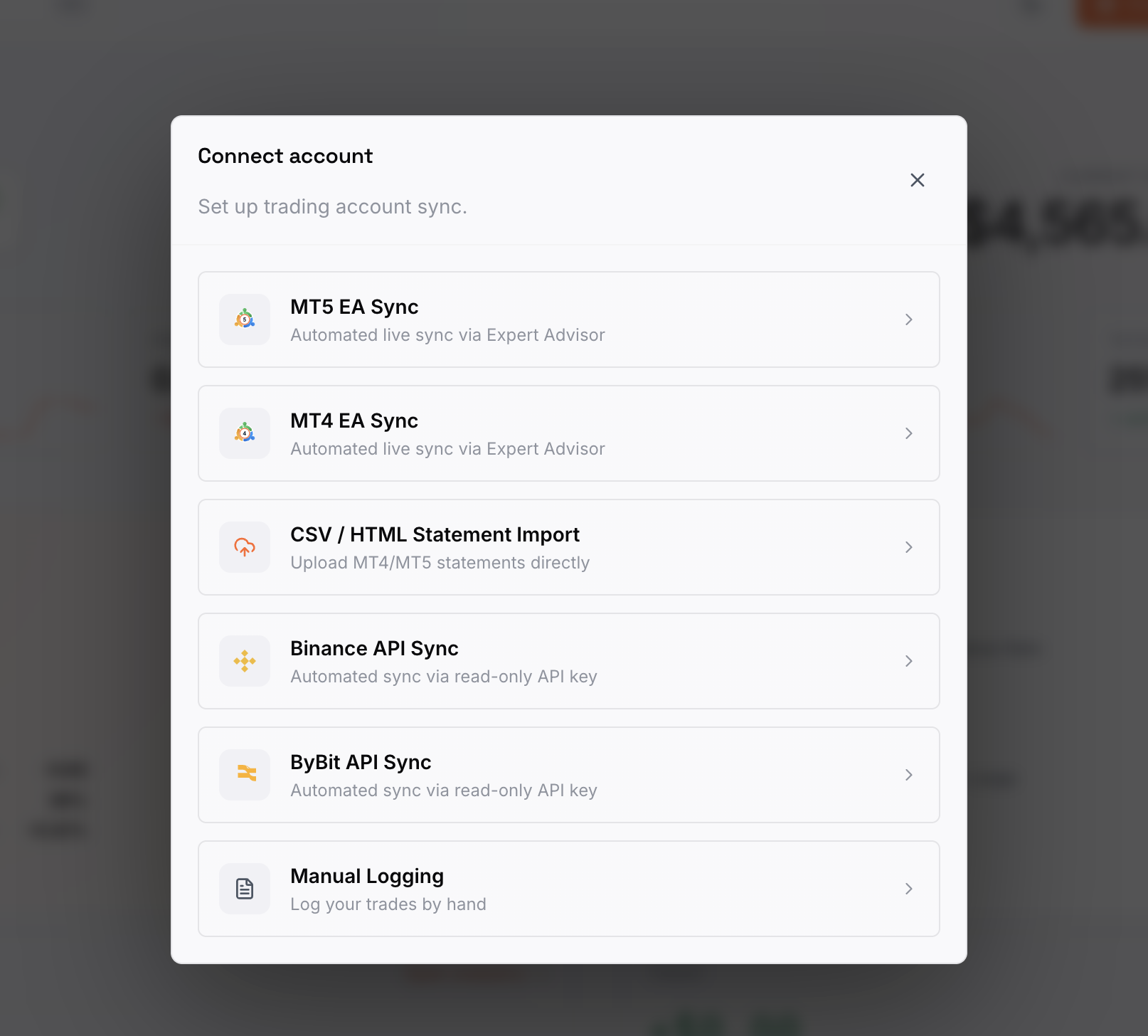
A modal will appear titled Connect account with several sync options listed. Since we're connecting to MetaTrader 5, click MT5 EA Sync — described as "Automated live sync via Expert Advisor." This is the recommended method and the one that gives you true real-time syncing.
Step 3 — Choose Your Platform and OS
You'll land on the Connected accounts settings page, under the MetaTrader EA Sync section. Under PLATFORM, confirm MetaTrader 5 is selected. Then, under YOUR OS, click either Windows or macOS, depending on which system you're running MT5 on. The setup instructions below will update to match your OS.
In this guide, we're following the macOS path, but the core steps are the same on Windows.
Step 4 — Copy Your API Key and Download the EA File
You'll see two things you need from this screen:
- YOUR API KEY — a unique string pre-filled in the field. Click the Copy button on the right to copy it to your clipboard. Keep this somewhere handy; you'll paste it into the EA settings shortly.
- Download EdgelогSync.ex5 — click this orange button to download the compiled EA file (~15 KB). This is the Expert Advisor that will run inside MT5 and push your closed trades to Edgelog.
The in-app SETUP GUIDE — MT5 ON MACOS section also lists every remaining step for reference, and there's a Watch macOS setup guide link if you prefer a video walkthrough.
Step 5 — Load the EA in MetaTrader 5's Navigator
Open MetaTrader 5. In the Navigator panel on the left, expand Expert Advisors. You should now see EdgelogSync listed there (after placing the downloaded .ex5 file in your MT5 Experts folder as instructed by the in-app guide). It'll appear alongside any other EAs you have installed.
If it's not showing up yet: on macOS, open Finder → Go → Go to Folder → paste ~/Library/Application Support/net.metaquotes.metatrader5/MQL5/Experts/ → copy the EdgelogSync.ex5 file into that folder → restart MetaTrader 5. On Windows, place the file in your MQL5/Experts folder via File → Open Data Folder inside MT5.
Step 6 — Allow WebRequest for Edgelog in MT5 Options
Before the EA can send data out, MT5 needs permission to make web requests to Edgelog's servers. Go to Tools → Options → Expert Advisors tab. Make sure Allow algorithmic trading is ticked at the top. Then tick Allow WebRequest for listed URL and add https://edgelogtrading.com to the URL list. Click OK.
You'll notice in the Experts log at the bottom of MT5 that EdgelogSync v2 initialized. messages are already appearing — that's a good sign the EA is running.
Step 7 — Attach the EA to a Chart and Enter Your API Key
Drag EdgelogSync from the Navigator onto any open chart. The EA settings dialog will open — click the Inputs tab. You'll see four fields:
- Your personal Edgelog API key — paste the API key you copied in Step 4 here.
- Edgelog sync endpoint — this is pre-filled as
https://edgelogtrading.com/api/trades/live. Leave it as-is. - How often to sync account + open positions — defaults to
60(seconds). You can leave this at 60. - Broker server time offset from UTC — defaults to
0. Adjust if your broker's server time differs from UTC.
Once your API key is pasted, click OK.
Step 8 — Confirm Trades Are Syncing in the Experts Log
Check the Experts tab in the MT5 terminal at the bottom of the screen. You should see log messages from EdgelogSync showing it's active — lines like EdgelogSync: scanning history, deals: 505 followed by EdgelogSync: sending batch of 50 trades… and finally EdgelogSync: sending final batch of 1 trades… confirm everything is working. Your historical trades are being pushed to Edgelog, and from this point forward, every new closed trade will sync automatically.
If you see any error messages in this log, note them down and submit them via the User feedback section in Edgelog's settings — the team can help you diagnose from there.
Common Issues & Troubleshooting
EA not appearing in Navigator — Make sure you placed the .ex5 file in the correct Experts folder and restarted MT5 fully. On macOS, the path is ~/Library/Application Support/net.metaquotes.metatrader5/MQL5/Experts/.
"WebRequest" errors in the Experts log — This usually means the URL whitelist step was skipped or the URL was entered incorrectly. Go back to Tools → Options → Expert Advisors, confirm Allow WebRequest for listed URL is ticked, and that https://edgelogtrading.com is in the list exactly as shown.
API key rejected / no trades appearing in Edgelog — Double-check you copied the full API key from the Connected accounts page without any extra spaces. You can re-copy it from Settings → Connected accounts at any time.
Algorithmic trading disabled — If the EA shows a red icon on the chart, check that Allow algorithmic trading is enabled both in Tools → Options → Expert Advisors and via the Algo Trading button in the MT5 toolbar.
Trades syncing but showing wrong times — Adjust the Broker server time offset from UTC field in the EA's Inputs tab to match your broker's server time zone.
For anything not covered here, check the FAQ or use the in-app feedback form — it goes straight to the team.
You're Live
That's the full setup. Your MT5 account is now connected to Edgelog, and every trade you close will sync automatically — no manual work needed. From here, you can head to Trades, Analytics, or the Playbook to start building real insight into what your edge actually looks like.
If you're not on Edgelog yet, it's completely free — no credit card, no trial period. Start journaling free and have your MT5 connected in the next five minutes.