How to Connect MetaTrader 4 to Edgelog for Live Trade Sync
If you're trading on MetaTrader 4 and still logging trades manually — or worse, not logging them at all — this guide is for you. In the next few minutes, you'll have MT4 connected to Edgelog's free trading journal with full live sync, so every closed trade appears in your journal automatically, usually within about a second of closing.
No spreadsheets. No copy-paste. Just your actual trading data, ready to analyze.
Here's exactly how to do it.
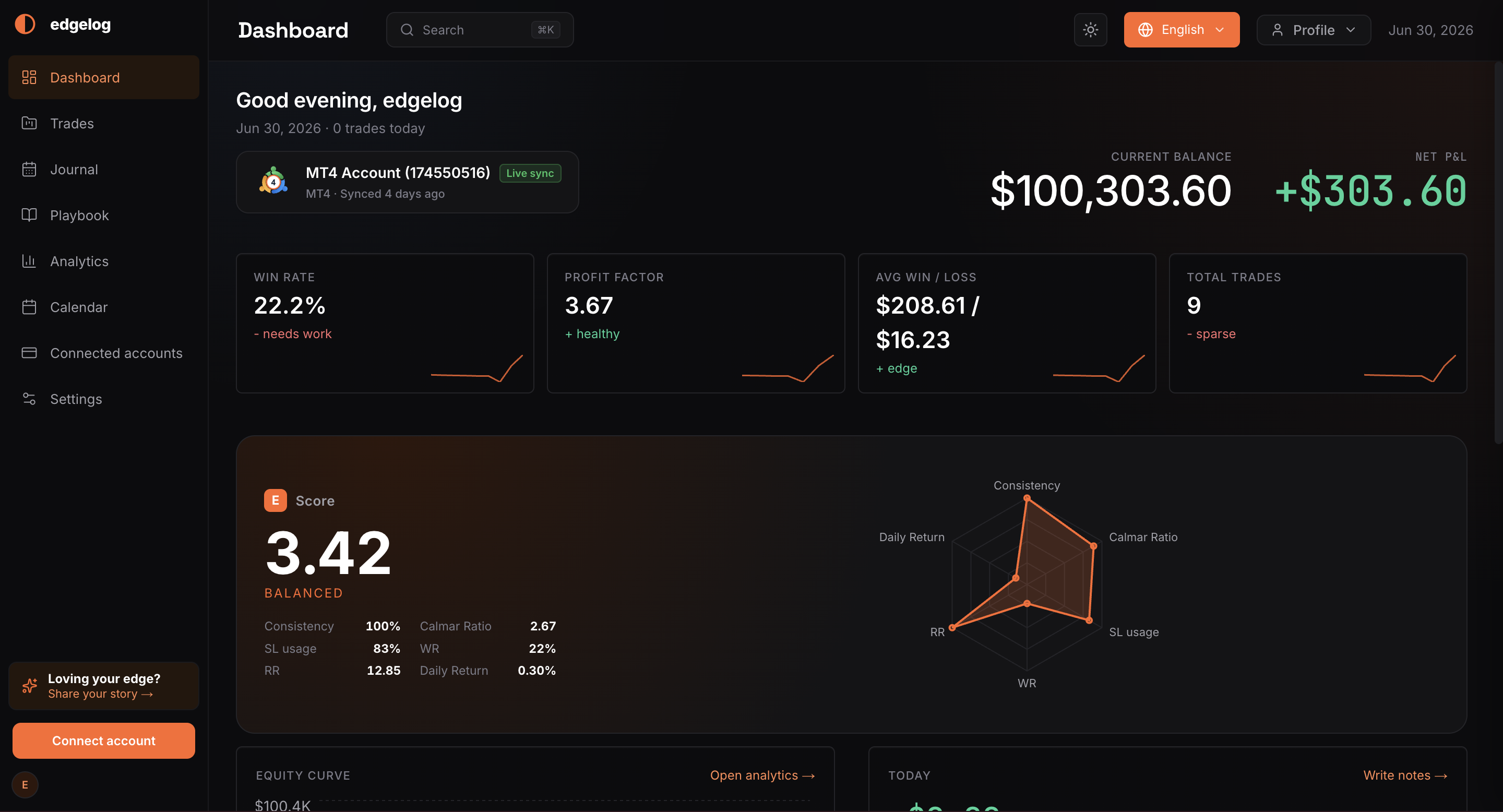
Step 1 – Open the Edgelog Dashboard and Click "Connect Account"
Log in to your Edgelog account. From the Dashboard, find the orange Connect account button in the bottom-left sidebar. Click it to open the connection setup modal.
You'll see this on your dashboard alongside your current balance, P&L, and performance metrics. If you already have an account connected, the button is still there — you can add multiple accounts.
Step 2 – Select "MT4 EA Sync"
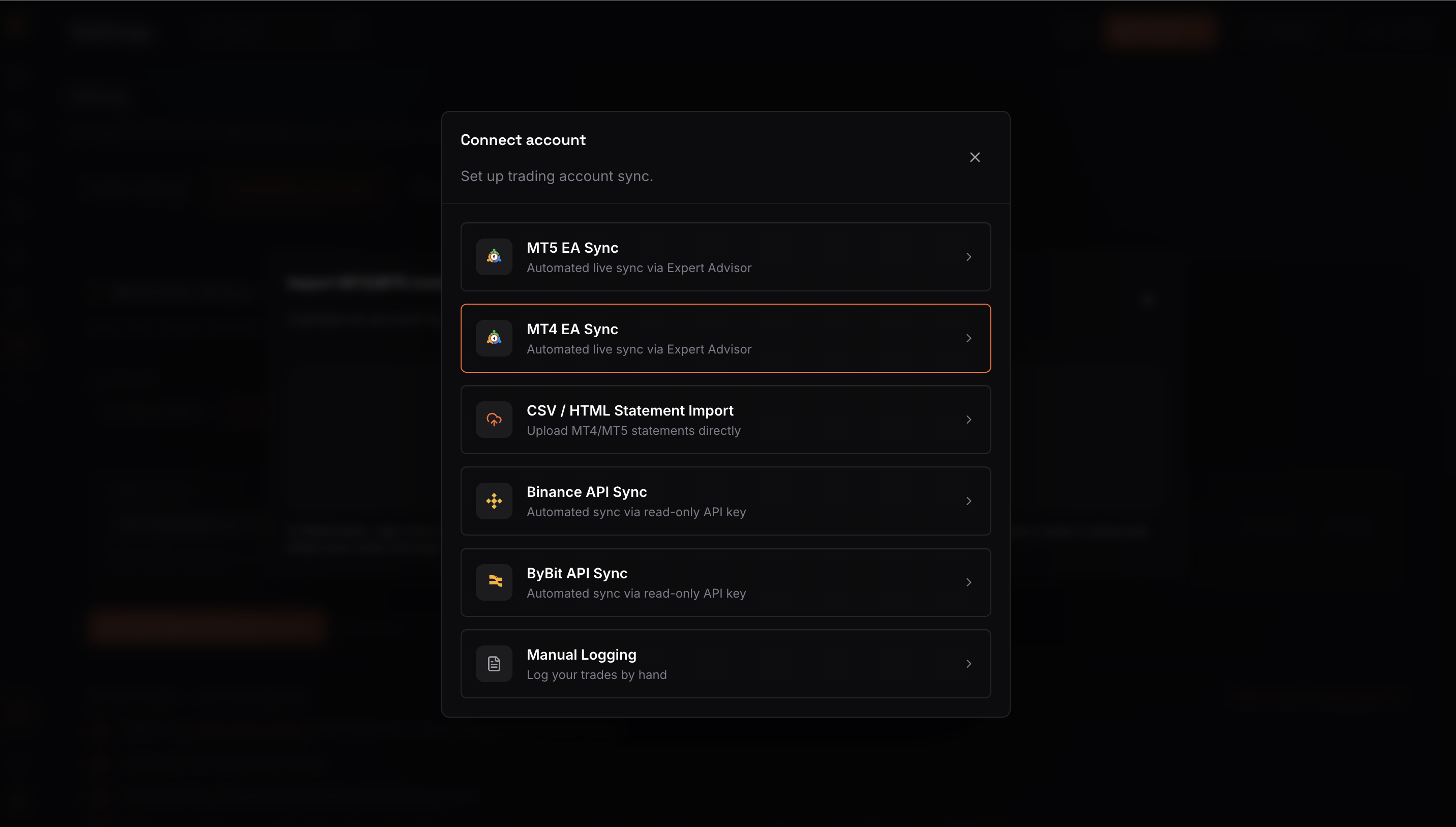
The Connect account modal lists all available connection methods. You'll see options for MT5 EA Sync, MT4 EA Sync, CSV/HTML import, Binance API, ByBit API, and Manual Logging.
Click MT4 EA Sync — it's described as "Automated live sync via Expert Advisor." That's the one you want for desktop MT4.
Step 3 – Select Your Platform and OS, Then Copy Your API Key
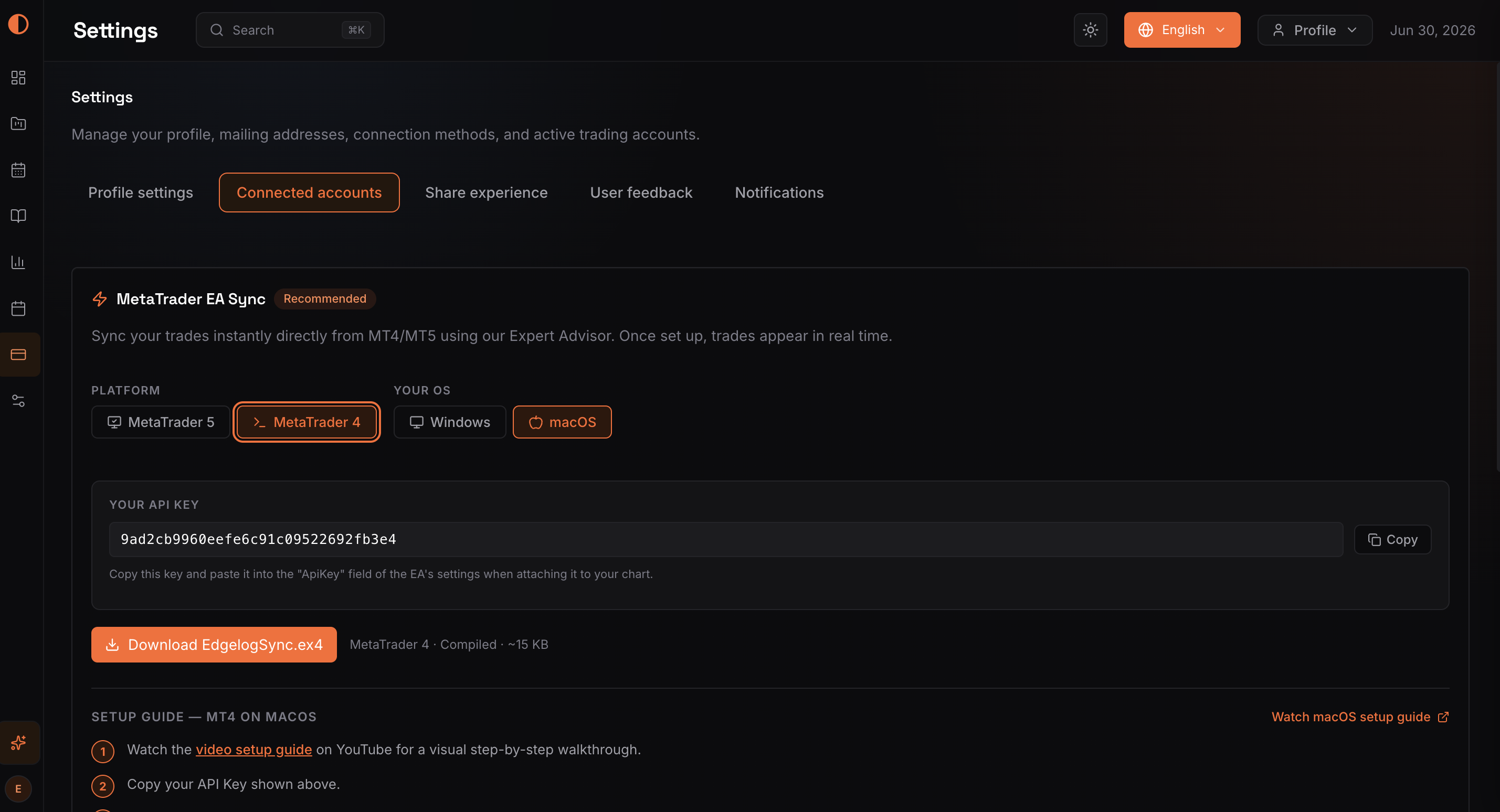
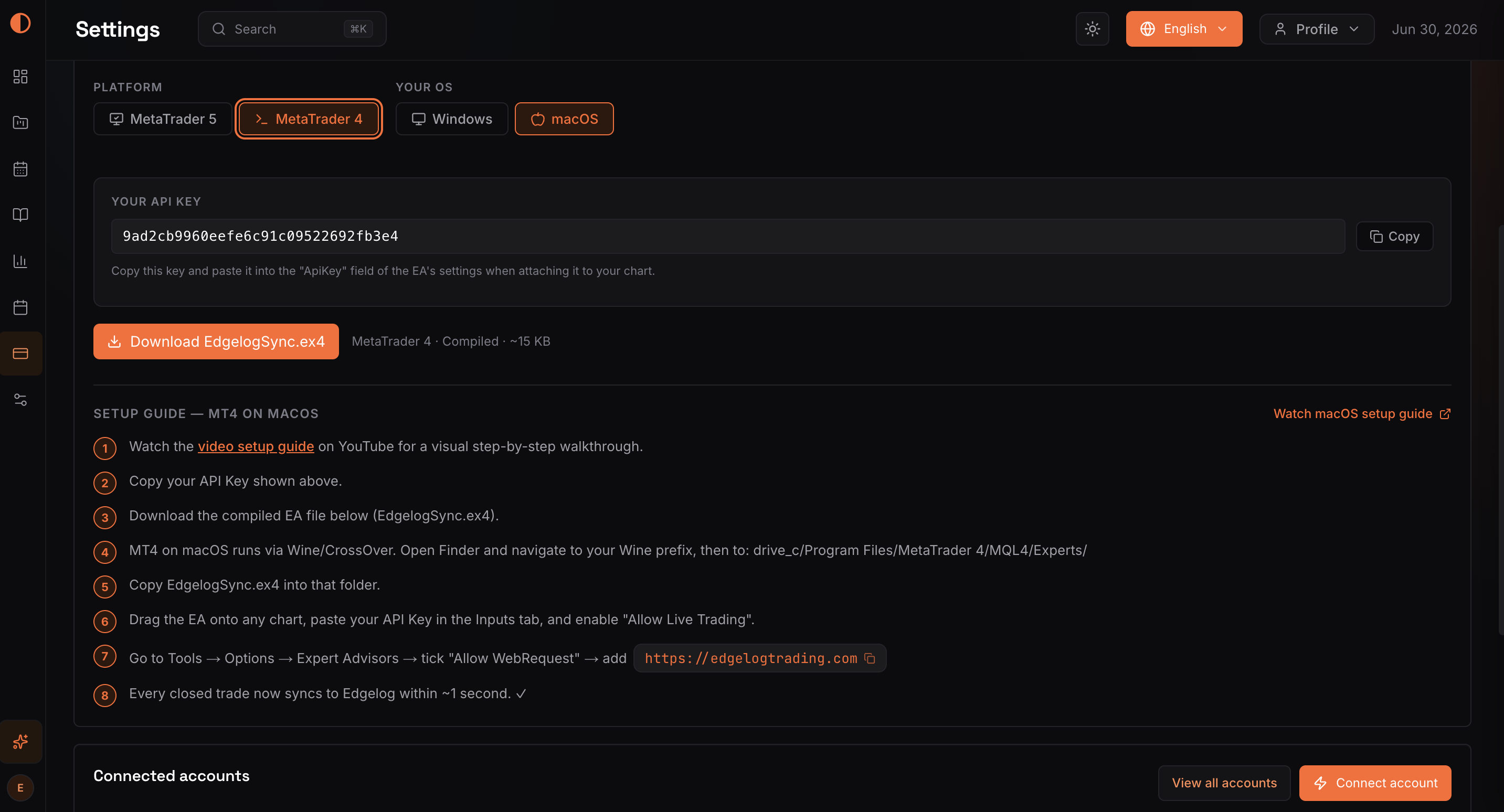
After selecting MT4 EA Sync, you'll land on the Connected accounts section inside Settings. The MetaTrader EA Sync panel (marked Recommended) will be visible.
Under PLATFORM, make sure MetaTrader 4 is selected (highlighted in orange). Under YOUR OS, select either Windows or macOS depending on your setup.
Your unique API Key is displayed in the YOUR API KEY field. Click Copy to copy it to your clipboard — you'll paste this into the EA in a later step. Don't share this key with anyone.
Step 4 – Download the EA and Review the Setup Instructions
Just below your API Key, click the orange Download EdgelogSync.ex4 button. The file is a compiled MetaTrader 4 Expert Advisor (~15 KB) — it's what does the syncing.
On this same screen, you'll also see the SETUP GUIDE section with numbered instructions specific to your OS. Read through these — they walk you through where to place the file and how to enable the EA correctly. For macOS users, there's a note that MT4 runs via Wine/CrossOver, so the file path will be inside your Wine prefix.
Keep this page open — you'll refer back to it.
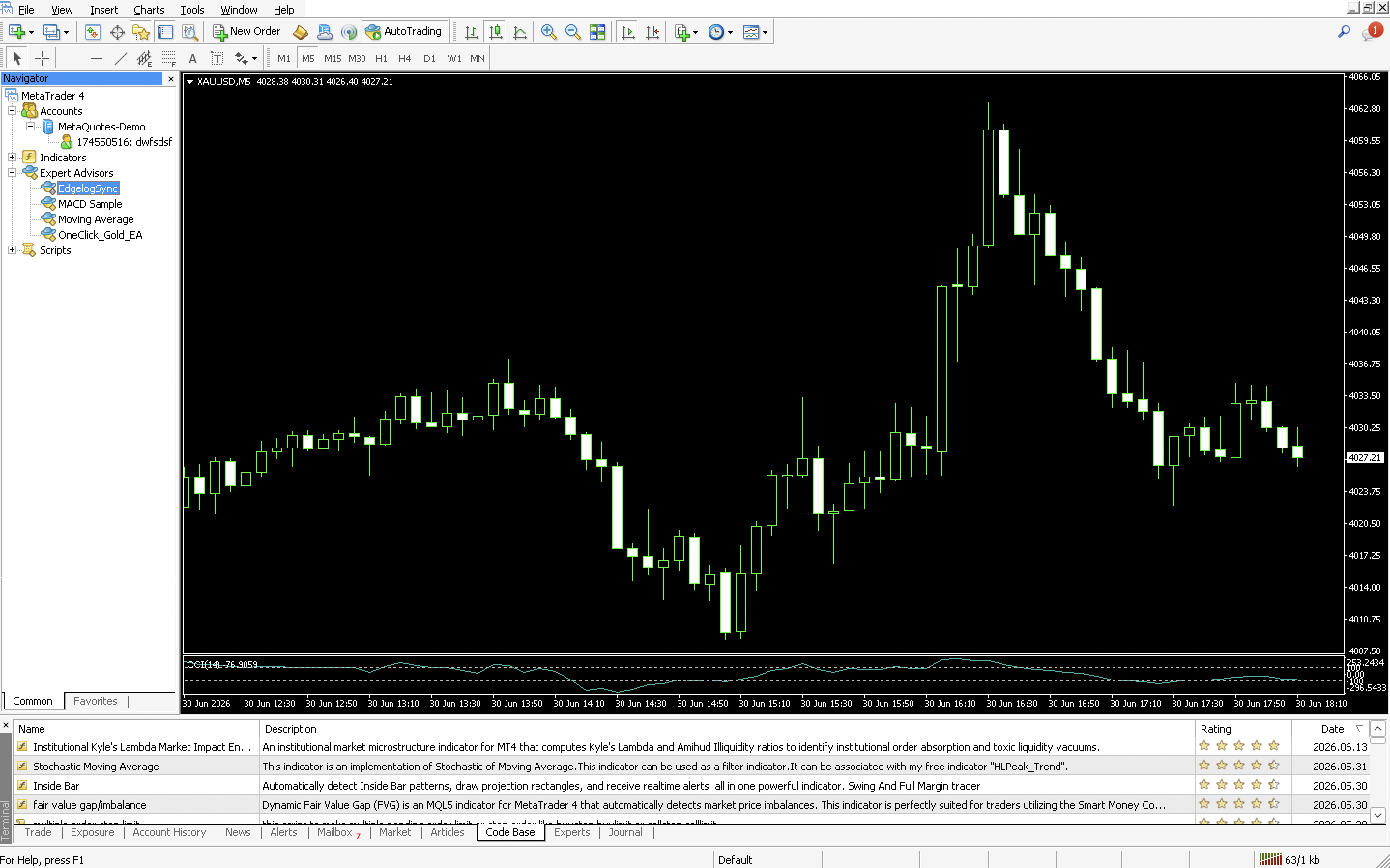
Step 5 – Place the EA File and Attach It to a Chart in MT4
Open MetaTrader 4 on your desktop. In the Navigator panel on the left, expand Expert Advisors. Once you've placed the EdgelogSync.ex4 file in the correct MQL4/Experts/ folder (and refreshed or restarted MT4), EdgelogSync will appear in that list.
Windows path: ...\MetaTrader 4\MQL4\Experts\
macOS path (Wine): drive_c/Program Files/MetaTrader 4/MQL4/Experts/
Once it appears in the Navigator, drag EdgelogSync onto any open chart. In the EA settings dialog that appears, go to the Inputs tab and paste your API Key into the ApiKey field. Make sure Allow live trading is enabled in the Common tab, then click OK.
Step 6 – Allow WebRequest for edgelogtrading.com in MT4 Options
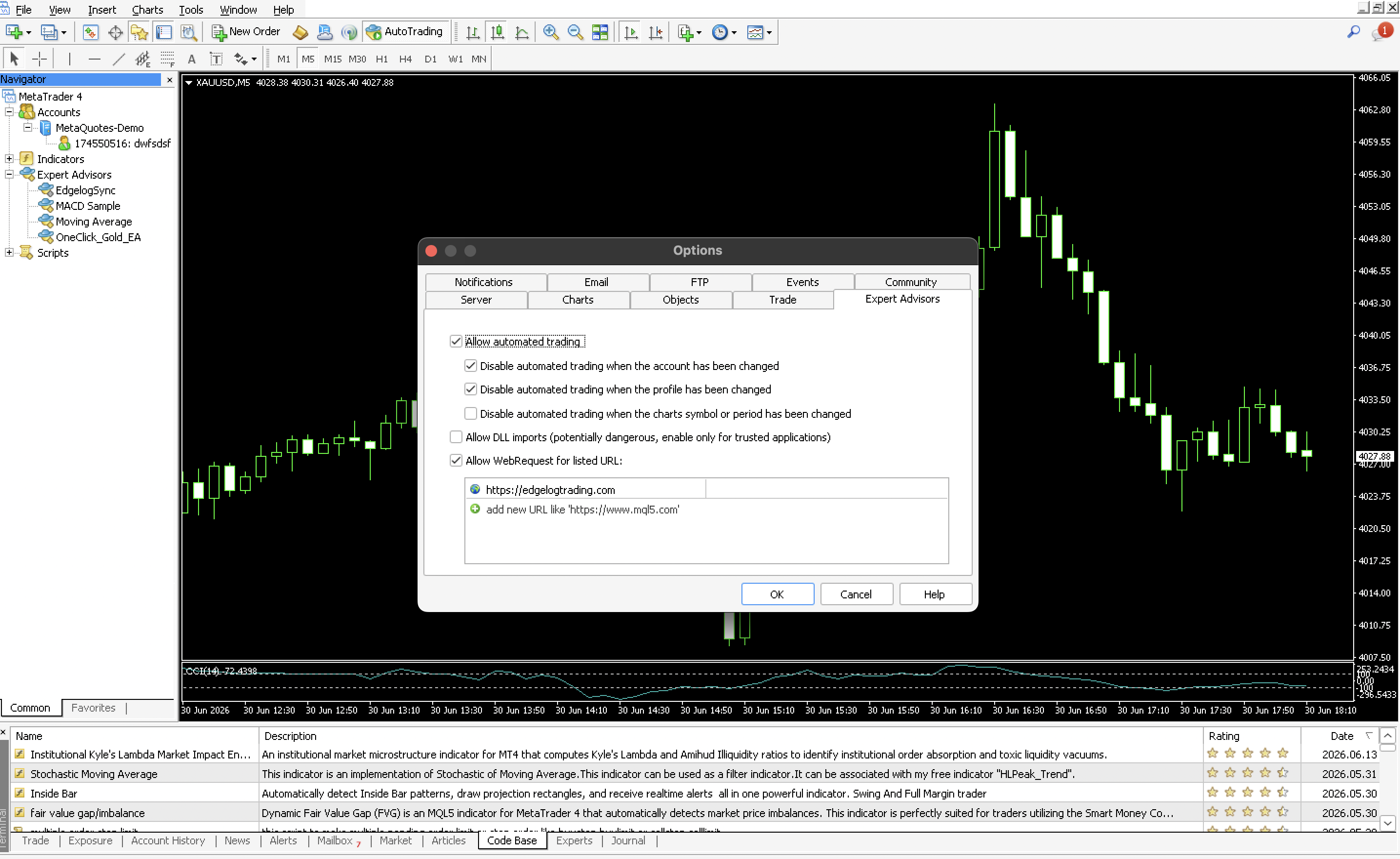
This step is critical and is the most common reason the sync doesn't work. MT4 blocks outbound web requests by default — you need to whitelist Edgelog's URL.
In MT4, go to Tools → Options and click the Expert Advisors tab.
Make sure Allow automated trading is checked. Then check Allow WebRequest for listed URL and add https://edgelogtrading.com to the URL list. You'll see it appear as an entry in the list below the checkbox.
Click OK to save.
Step 7: Configure the EdgelgSync EA Settings
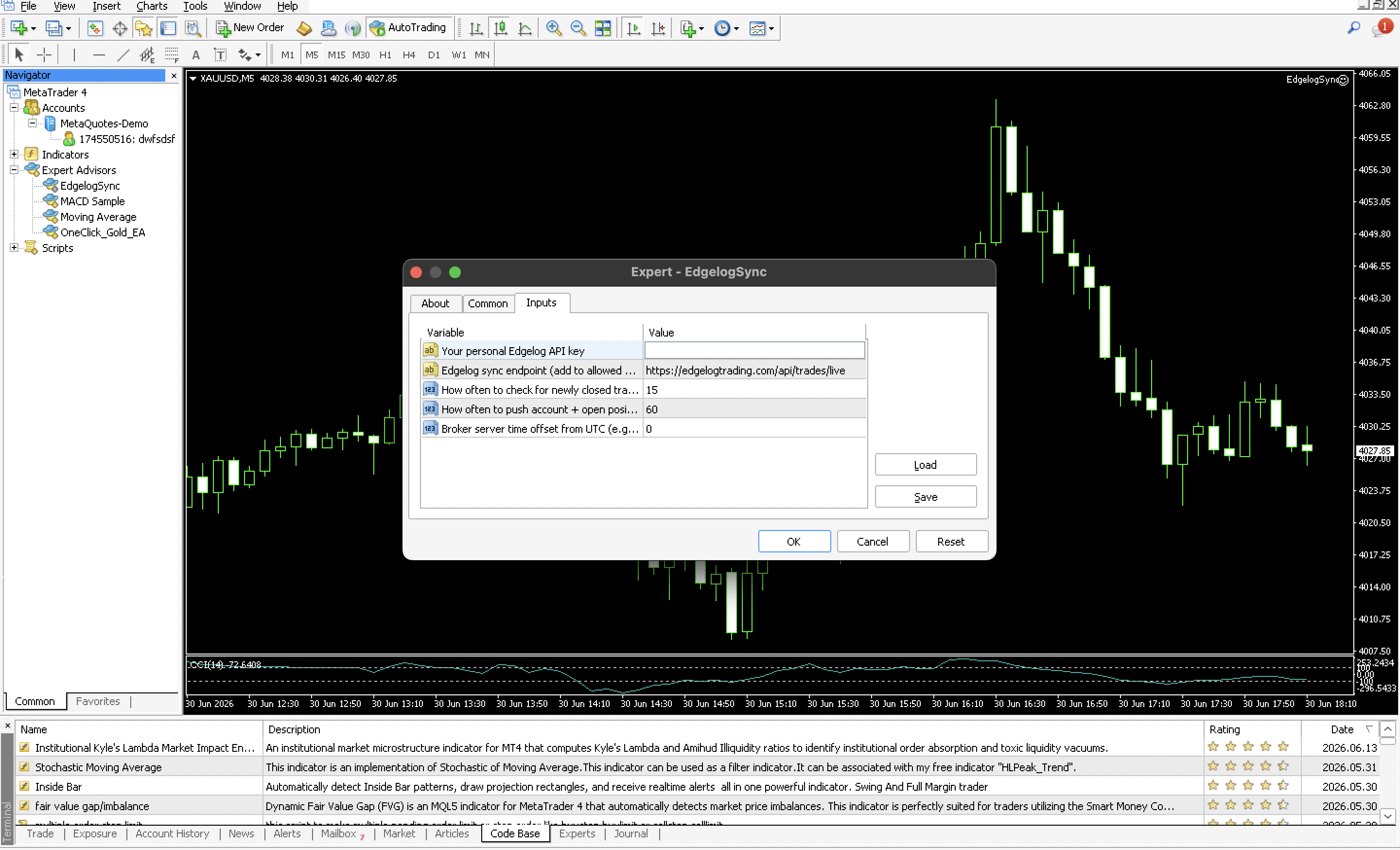
Once the EA loads, a settings pop-up will appear with three tabs — About, Common, and Inputs. Click the Inputs tab.
You will see five fields to configure:
- Your personal Edgelog API key — paste your unique API key here. You can find this inside your Edgelog dashboard under Account Settings.
- Edgelog sync endpoint — this should already be pre-filled as
https://edgelogtrading.com/api/trades/live. Do not change this. - How often to check for newly closed trades — default is
15(seconds). Leave this as is unless your broker connection is slow. - How often to push account + open positions — default is
60(seconds). This controls how frequently your live balance and open trades sync. - Broker server time offset from UTC — set this to
0unless your broker runs on a non-UTC timezone. Check your broker's server time if trades are not syncing at the correct timestamps.
Once all fields are filled, click OK to save and activate the EA.
Step 8 – Confirm the EA Initialized Successfully
In MT4, click the Experts tab at the bottom of the terminal panel. You should see a sequence of log messages confirming the EA loaded and initialized correctly. Look for lines like:
Expert EdgelogSync XAUUSD, M5: loaded successfullyEdgelogSync v2 (MT4) initialized.EdgelogSync XAUUSD, M5: initialized
You'll also see the inputs logged — your API URL, poll interval, and sync settings. If these messages are present, your MT4 is live-connected to Edgelog. Every closed trade will now sync automatically, typically within about one second.

Common Issues and Troubleshooting
EA not showing in Navigator — Make sure the .ex4 file is in the correct MQL4/Experts/ folder. Right-click Expert Advisors in the Navigator and select Refresh, or restart MT4 completely.
Trades not syncing — The most likely cause is the WebRequest URL not being added. Go back to Tools → Options → Expert Advisors and confirm https://edgelogtrading.com is listed and the checkbox is ticked.
"Allow automated trading" is greyed out or disabled — Check the AutoTrading button in the MT4 toolbar. It should be active (green). The EA doesn't place trades — it only reads your history — but MT4 still requires this to be enabled for EAs to run.
EA keeps reinitializing — This can happen if MT4 is set to disable EAs when the chart symbol or period changes. In the Expert Advisors options, untick Disable automated trading when the chart's symbol or period has been changed.
Wrong API Key — If the Experts log shows an authentication error, go back to Settings → Connected accounts in Edgelog, copy your API Key again, and re-enter it in the EA's Inputs tab.
If you're still stuck after checking all of the above, visit the FAQ or reach out via the in-app support chat.
You're Live — Now Use the Data
Once the expert's log shows the EA initialized, you're done. Head back to your Edgelog dashboard, and you'll see your MT4 account listed with a Live sync badge — just like in the first screenshot above. From here, every trade you close in MT4 flows straight into your journal.
That's the whole point of a trading journal for MT4 — not to create more admin work, but to eliminate it and give you real data to work with.
Ready to get started? Start a free trading journal — no credit card required, no setup fees, and the MT4 EA Sync is included for free.