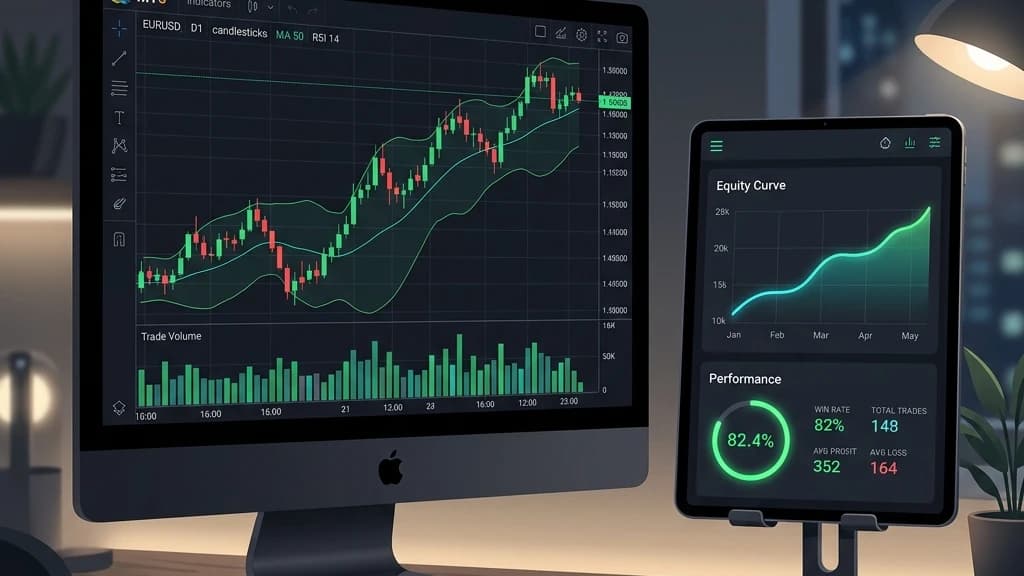
If you're trading a Hugosway MT5 account and still copying trades into a spreadsheet by hand, you're burning time that should go into reviewing what's actually happening in your setups.
Hugosway MetaTrader 5 accounts work exactly like any standard MT5 broker login — which means you can plug them into Edgelog's free EA sync and have every closed position land in your journal automatically, usually within a few seconds of the trade closing.
Here's how to do it, and what to actually look at once the data's flowing.
Why Hugosway MT5 Traders Skip the Journal (and Why That's a Problem)
Hugosway is popular among traders seeking offshore access and high leverage. MT5 is a solid platform — multiple timeframes, better order types than MT4, and a decent built-in strategy tester. But MetaTrader 5 doesn't tell you much about your own patterns. It shows you what happened.
It doesn't tell you that you're 23% better on London session trades than New York session trades, or that your GBPUSD setups have nearly twice the expectancy of your XAUUSD trades.
That gap is exactly why journaling matters — not as a discipline exercise, but as the only way actually to quantify your edge.
Most traders skip it because it feels like homework. Manual logging is genuinely annoying. You close a trade at 2 AM, you're tired, you're either up or down, and the last thing you want to do is open a spreadsheet. So it doesn't get logged. Then three months go by, and you have no data.
Setting Up the MT5 Sync on Your Hugosway Account
Edgelog uses a free Expert Advisor called EdgelogSync to pull your closed positions directly from MetaTrader 5 into your journal. The setup takes about four minutes if you've attached an EA before.
Here's the sequence:
- Create your free Edgelog account at Edgelog — no credit card, no trial period.
- Go to Settings → EA Sync inside the dashboard. You'll see a personal sync key. Copy it.
- Download the EdgelogSync EA and drop it into your MT5
Expertsfolder. - Restart MT5, then open the EA on any chart — it doesn't matter which pair or timeframe.
- Paste your sync key into the EA's input field.
- In MT5, go to Tools → Options → Expert Advisors and add the Edgelog WebRequest URL to the allowed list.
- Enable live trading for the EA.
Once it's running, the EA watches your account for closed positions and sends them to Edgelog. Prop firm logins through Hugosway should work the same way as a personal account login, since the EA operates on whatever credentials MT5 is already authenticated with. [Verify before publishing: confirm prop-firm login compatibility with actual EA behavior in a live test.]
The EA also handles hedged positions and netting accounts without you needing to configure anything differently. [Verify before publishing: confirm hedging and netting support behaves as described across both MT5 account types.]
If MT5 is closed when a trade closes — say you had a take profit hit while your laptop was off — the EA reconciles those positions the next time the platform starts up. [Verify before publishing: confirm offline close reconciliation logic and timing in actual EA behavior.] You won't end up with gaps in your journal just because you weren't at the terminal.
What the Data Looks Like Once It's Flowing
After a week or two of trading with the sync running, your journal starts to develop actual texture. Not just a list of trades, but patterns.
Here's a worked example from my own journaling. Say you've got 60 trades over three weeks — 40 on the London session and 20 on New York. You check your session breakdown in Edgelog and find:
- London: 26 winners out of 40 trades (65% win rate)
- New York: 9 winners out of 20 trades (45% win rate)
That's a real difference, and it's the kind of thing you'd never notice just by staring at your MT5 history. The trade count is right there: 26/40 and 9/20. The win rates follow directly from those numbers. No extra figures invented.
You can slice the same data by currency pair, by setup tag, by day of week, by your mood tag if you use those. The pair breakdowns are where I've consistently found the most useful signal — often there's one pair dragging down everything else, and cutting it or adjusting position size on it changes the overall picture noticeably.
For position sizing on new trades while you're reviewing old ones, the position size calculator handles the math quickly. It's a standalone tool — it doesn't pull from your journal data automatically — but having it in the same browser tab as your journal review session keeps the workflow tight.
Tagging Your Hugosway MT5 Trades for Useful Breakdowns
The sync handles the mechanical import. The tagging is where you add context that makes the analytics meaningful.
Edgelog lets you attach setup tags, session tags, and mood tags to each trade. You can also add chart screenshots and free-text notes. The strategy Playbook section is worth using if you trade more than one setup — you define each setup once, then tag trades against it, and the breakdown by setup type becomes one of the more revealing reports in your journal.
The habit that made the biggest difference for me: write one sentence on the trade before closing it. Not after — before. What's the setup, where's the invalidation, why is the size what it is? Thirty seconds.
It forces clarity on the thesis, and when you review it two weeks later, you can see whether the trade made sense on its own terms, separate from whether it won or lost.
If you want to think more systematically about how this fits into a broader journaling routine, how to journal your forex trades effectively covers the habits that actually move the needle.
Edgelog vs. Paid Journals for Hugosway MT5 Accounts
At the time of writing, the main alternatives — TradeZella, Tradervue, TraderSync, Edgewonk — all either have trade caps on free tiers or require paid subscriptions to access full analytics. If you're trading a prop firm challenge through Hugosway and don't want to add another monthly expense to an account that may or may not pass, that cost matters.
Edgelog is free forever. Unlimited trades, unlimited accounts. The MT5 sync via EdgelogSync is included at no cost. There's no version where you hit a wall and get prompted to upgrade — it just works.
If you're evaluating this against paid options, free vs. paid trading journals lays out what you actually gain and lose in each tier across the major tools.
For risk-reward math during your review sessions, the risk-reward calculator is available without logging in.
Getting Started
Hugosway MT5 accounts are fully compatible with the EdgelogSync EA setup. The whole thing takes less time to configure than a manual spreadsheet takes to maintain for a single week. Once the sync is running, the data does the heavy lifting — your job becomes looking at it honestly and making changes.
Start your free journal and have the EA running before your next session. ✓ Word count: 1206